A walkthrough of every part of the app, with screenshots so you always know what to look for. Jump to a section below, or just scroll through.
Don't have the app yet? Get ShareRound here.
Everything you own and share, and everything fellow circle members own and share.
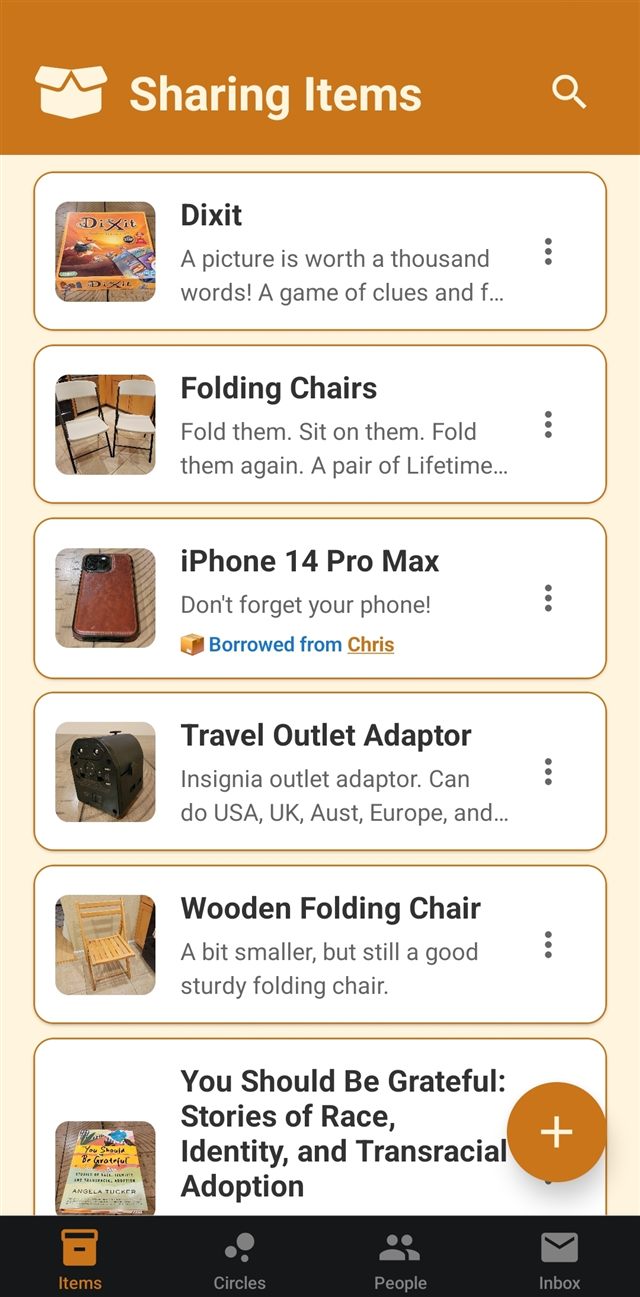
Tapping Items in the bottom navigation brings you to the Sharing Items list. Every item you've added or have access to from others through a sharing circle shows up here. If something's lent out, its card shows who has it and when it's due back.
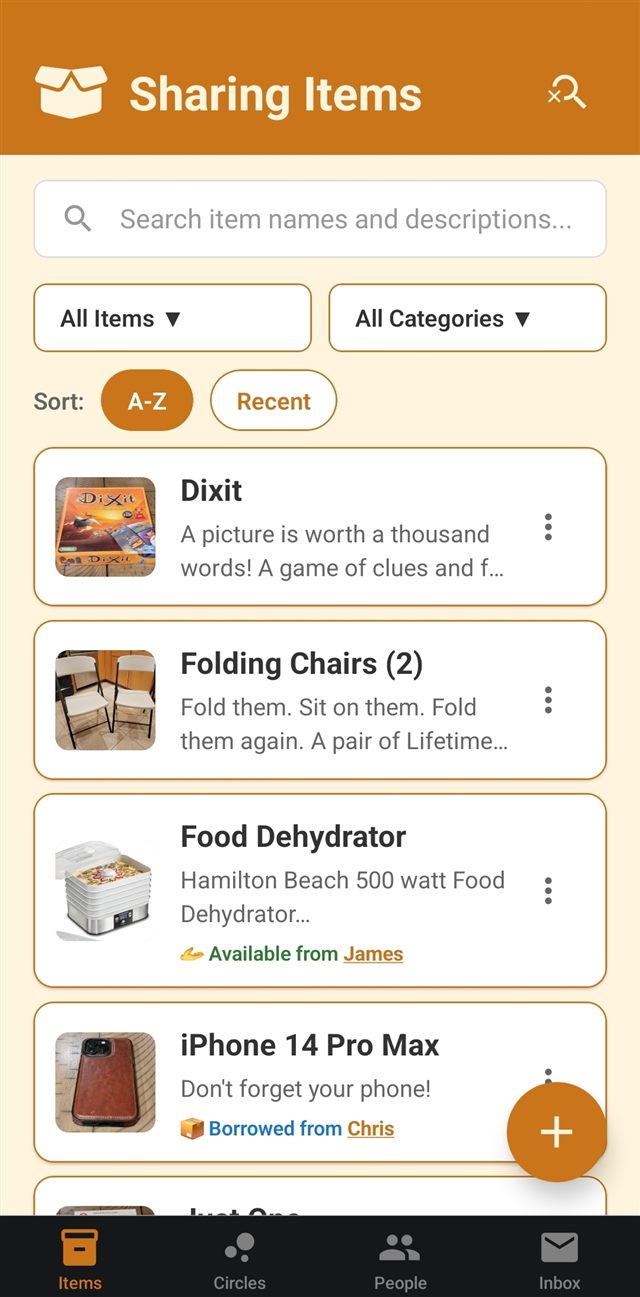
Tap the 🔍 magnifying glass in the top right of the Sharing Items screen to search, filter, or sort the items shown. Search by item name or description. Filter by item status or category. Sort the list A–Z by item name or by most recently added.
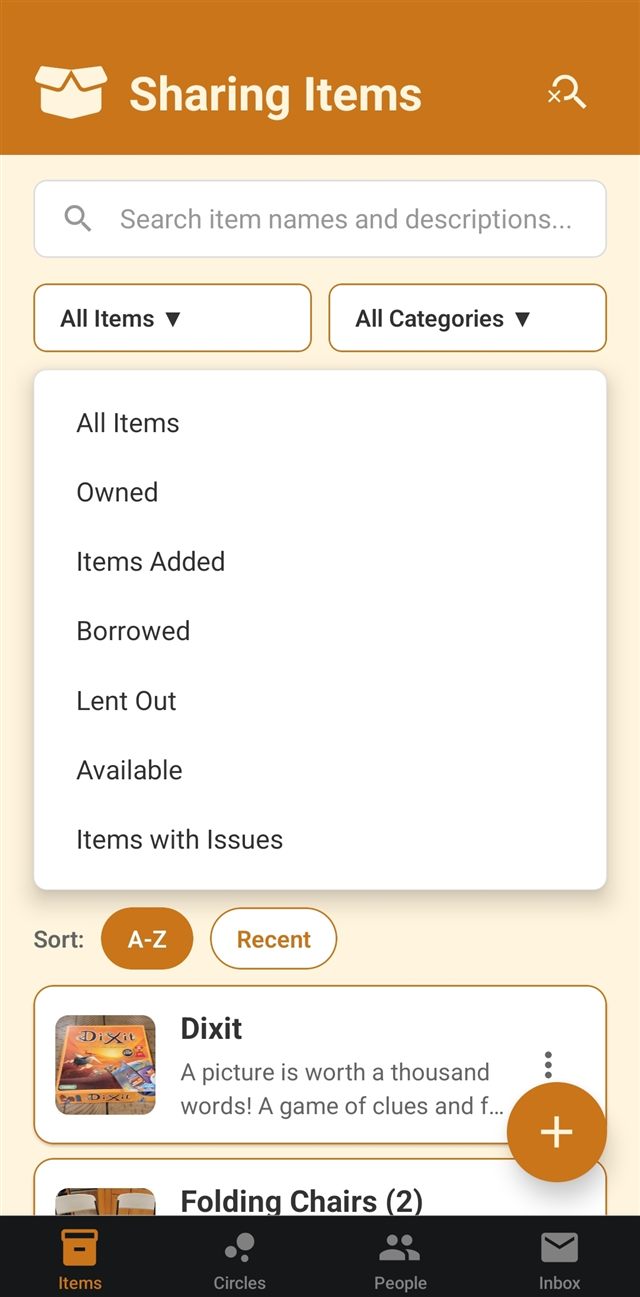
Having tapped the 🔍 magnifying glass, the status filter on the left under the search bar lets you narrow down the list and see only the items owned or added to ShareRound by you, or just see what's currently borrowed to you, lent out from you, available to be borrowed, or flagged with an issue.
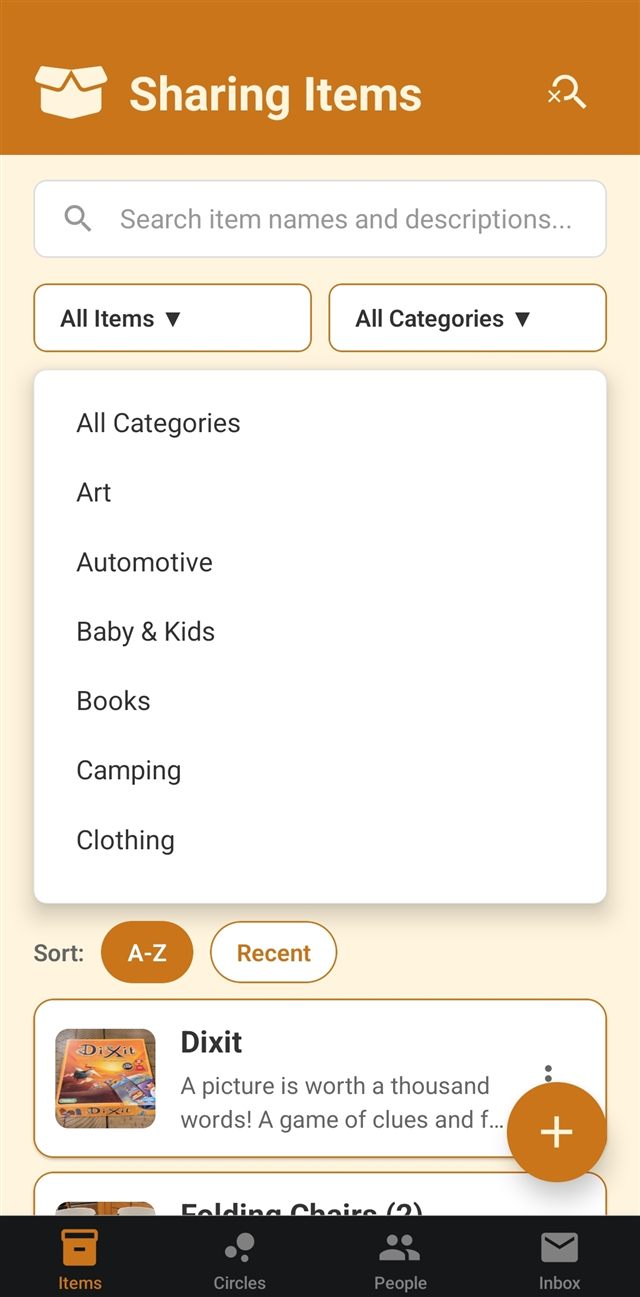
Having tapped the 🔍 magnifying glass, the category filter on the right under the search bar lets you narrow the list down to just one kind of item, like books, games, or tools. Scroll through the categories in the filter to see them all.
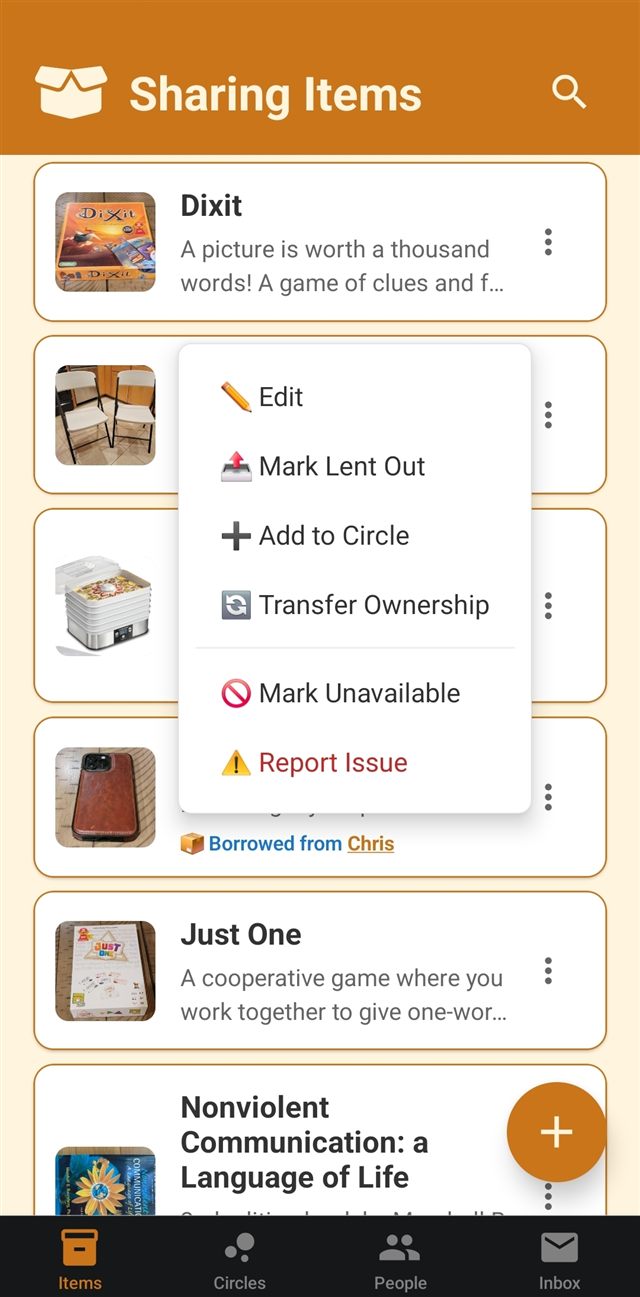
Tap the ⋮ three dots on the right of an item's card for shortcuts to actions available for that item. If you own the item you can edit it, mark it as lent out or unavailable, add it to a circle, transfer ownership of the item to someone else, request return or ask to change the return date if it's currently lent out, or report an issue with it. If someone else owns the item, you can request to borrow it or message the owner about it. If you are borrowing the item from someone else, you can ask to change the return date or start the return process.
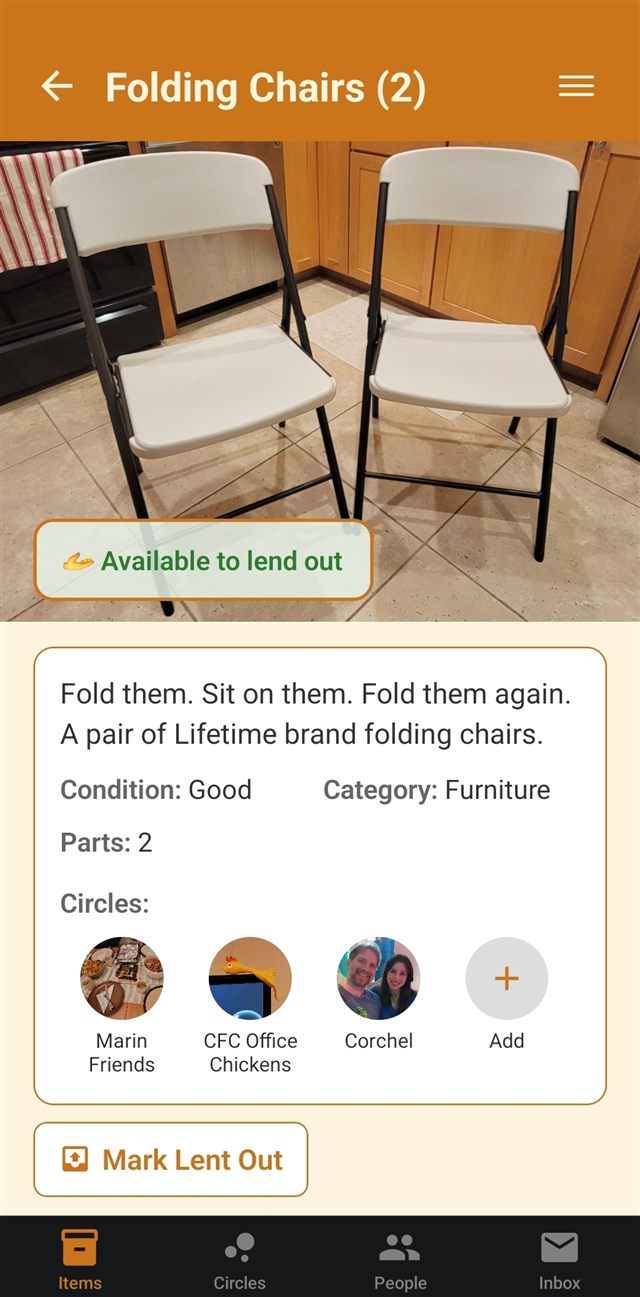
Tap any item to see its full description, condition, category, value, and every circle you're in that it's been added to. If you own the item, tap Add under Circles to list it in another sharing circle. Note that items are only visible to people in sharing circles the item is in.
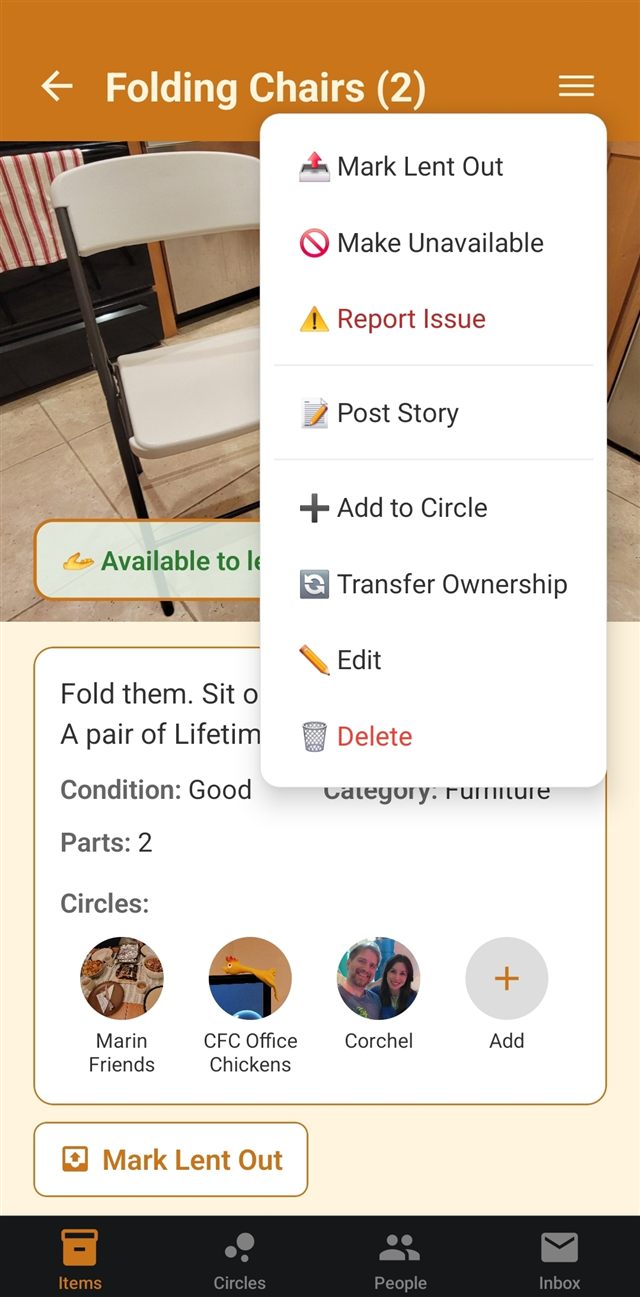
The ☰ menu in the top right of an item's detail page lets you manage it. If you own the item you can edit or delete it, mark it as lent out or unavailable, add it to a circle, transfer ownership of the item to someone else, request return or ask to change the return date if it's currently lent out, or report an issue with it. If someone else owns the item, you can request to borrow it or message the owner about it. If you are borrowing the item from someone else, you can ask to change the return date or start the return process. You can also post stories about using the item.
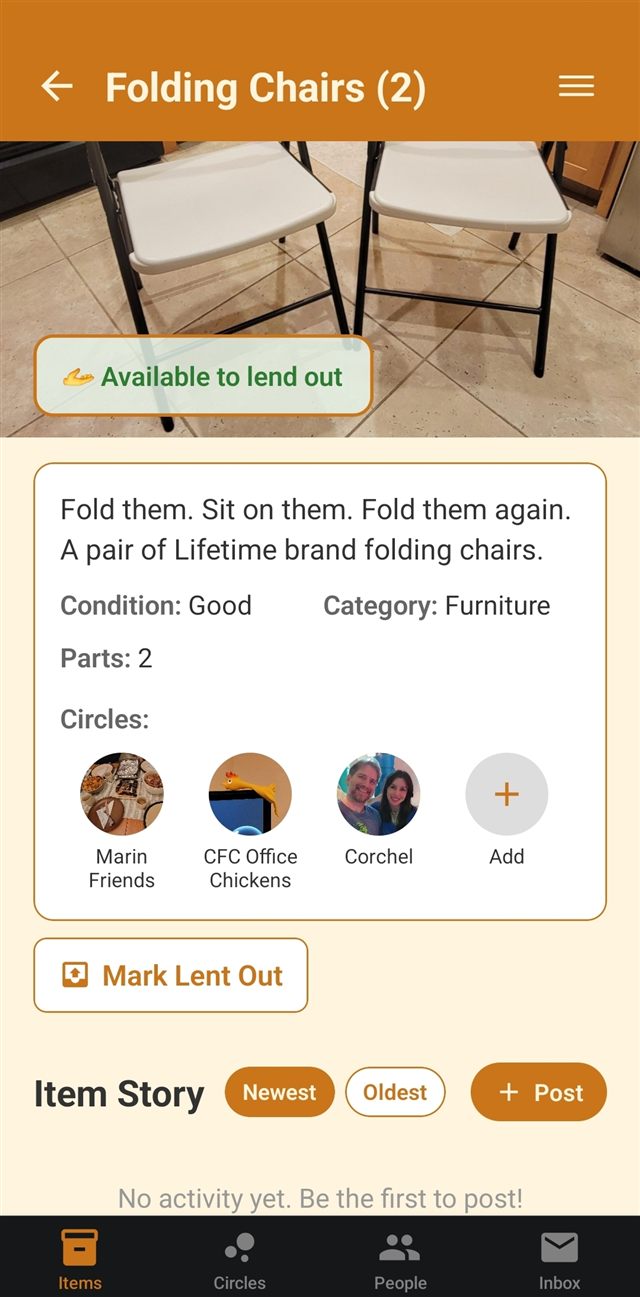
Scroll below the details on any item's page to see the Item Story. This includes sharing activity of the item as well as stories and photos that have been posted about using it. Tap the + Post button or the Post Story option in the item menu to add a new one.
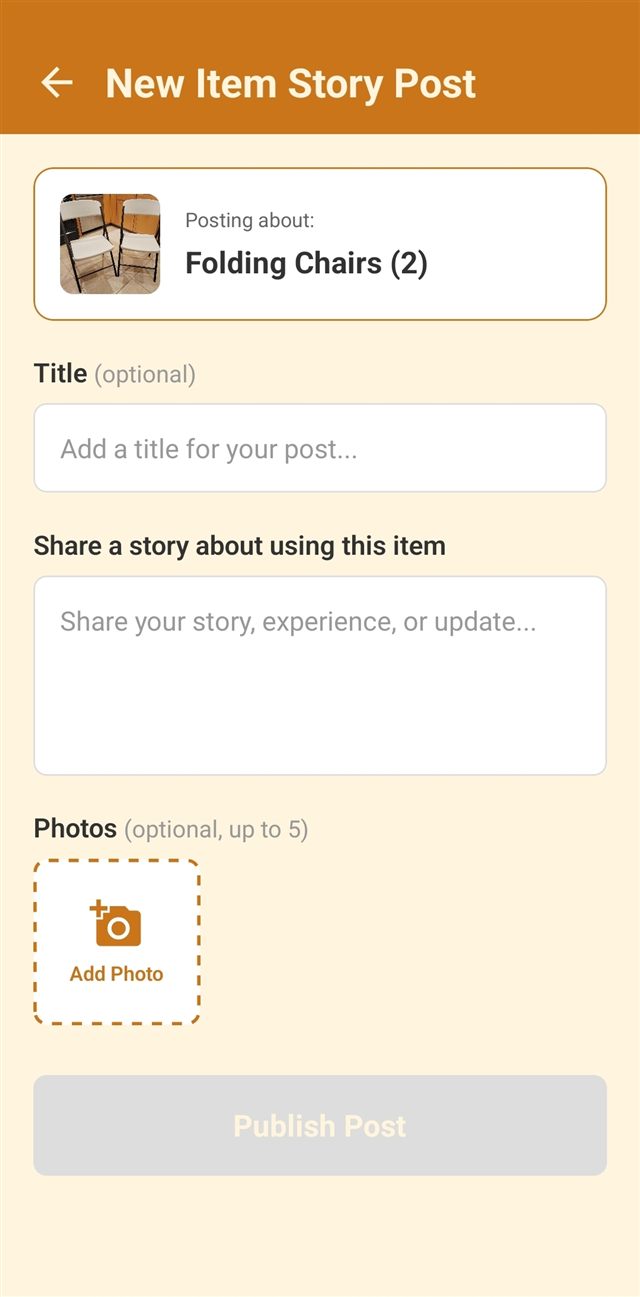
Used something a friend lent you? Post a quick update, a few photos, or a story about using it. Item story posts show up on the item's page for everyone in its circles to see. It's a fun way to bring items to life and build community around them.
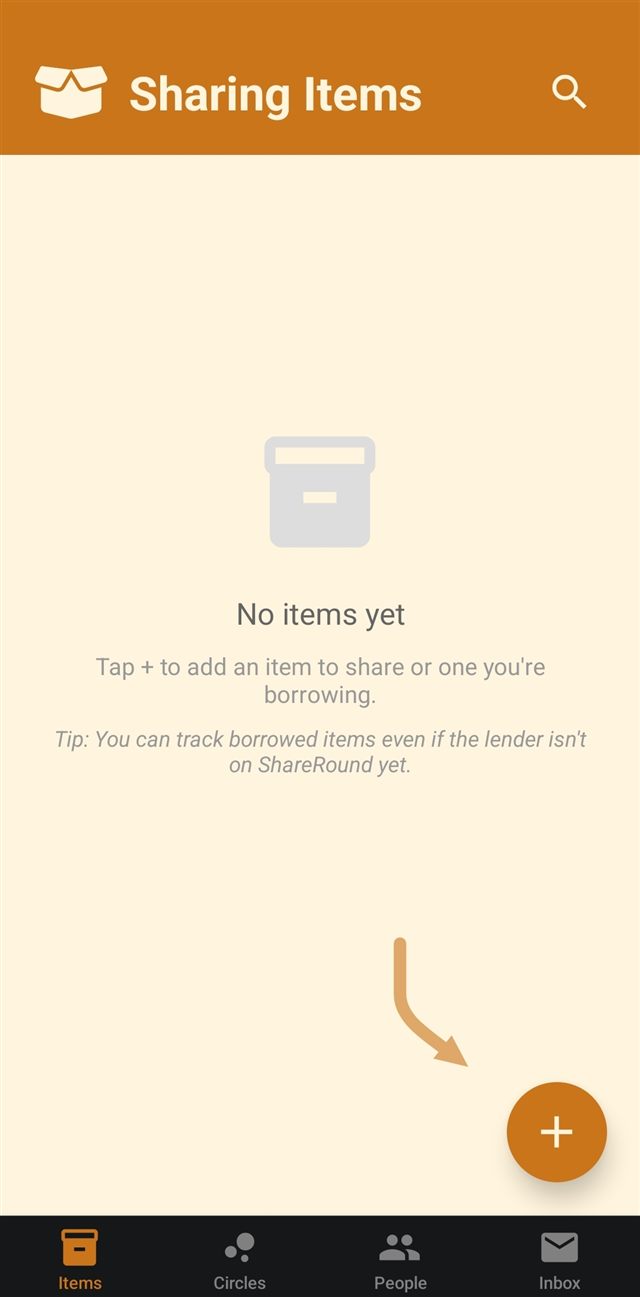
When you first sign up for ShareRound, or haven't joined a sharing circle with items yet, the Sharing Items list will be empty. Tap the orange + button to add your first item (or to add more at any time), either something of yours you're willing to share, or something you're currently borrowing from someone else.
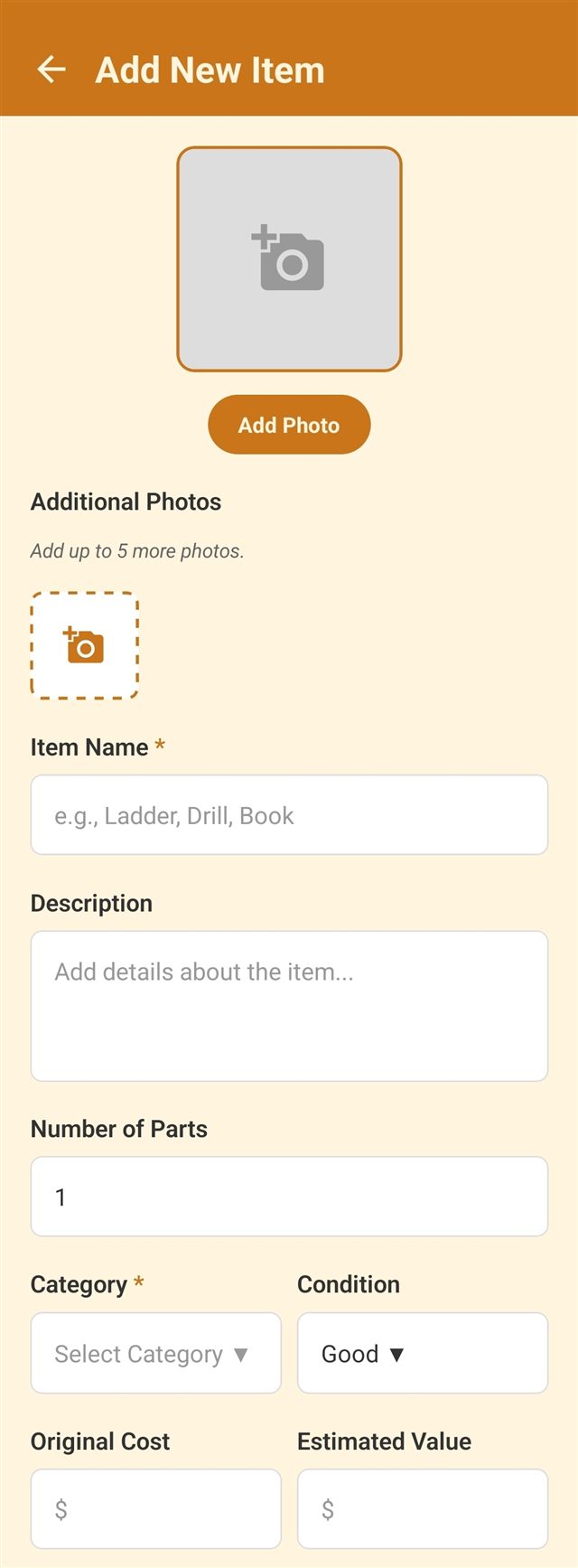
Add a primary item photo (which you'll crop so it fits in item cards) plus up to 5 additional photos, give the item a name, and fill in a description, category, value, and condition. Only the name and category are required. Note that the item won't be visible to anyone else unless it's added to a sharing circle, or you mark it as being borrowed from someone else already on ShareRound.
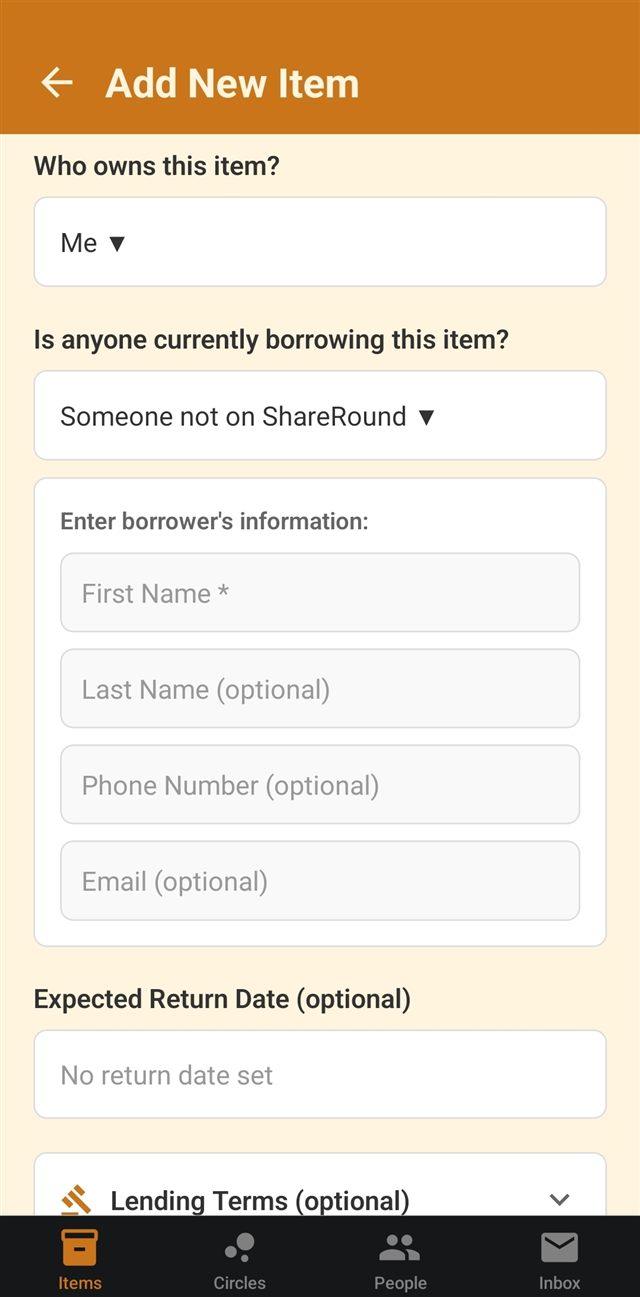
Say who owns the item and, if it's currently lent out, who has it. If that person isn't on ShareRound yet, you can still track that it's lent out. Just type in their name and any info you have permission to use. This creates a placeholder profile for them that you manage, and you can invite them later to claim it, giving them access to the item you've already entered.
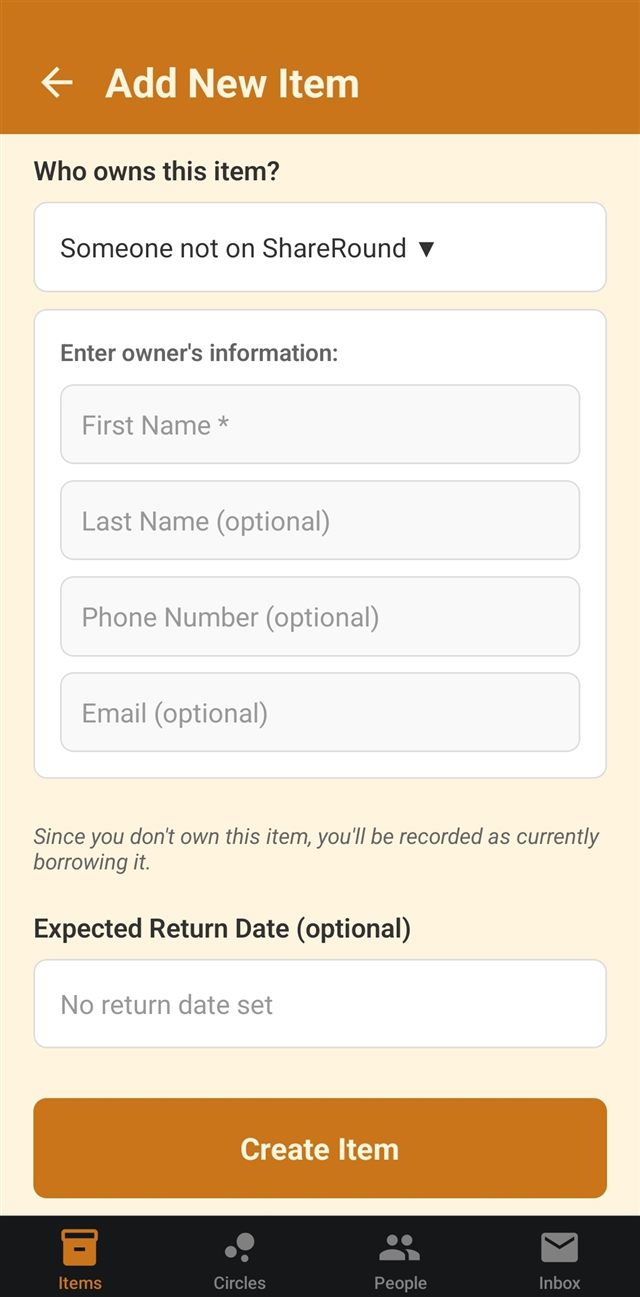
Adding something you're borrowing works the same way, just in reverse. Record who it belongs to, even if they don't use ShareRound yet, so you don't lose track of it. Just type in the item owner's name and any info you have permission to use. This creates a placeholder profile for them that you manage, and you can invite them later to claim it, giving them access to the item you've already entered.
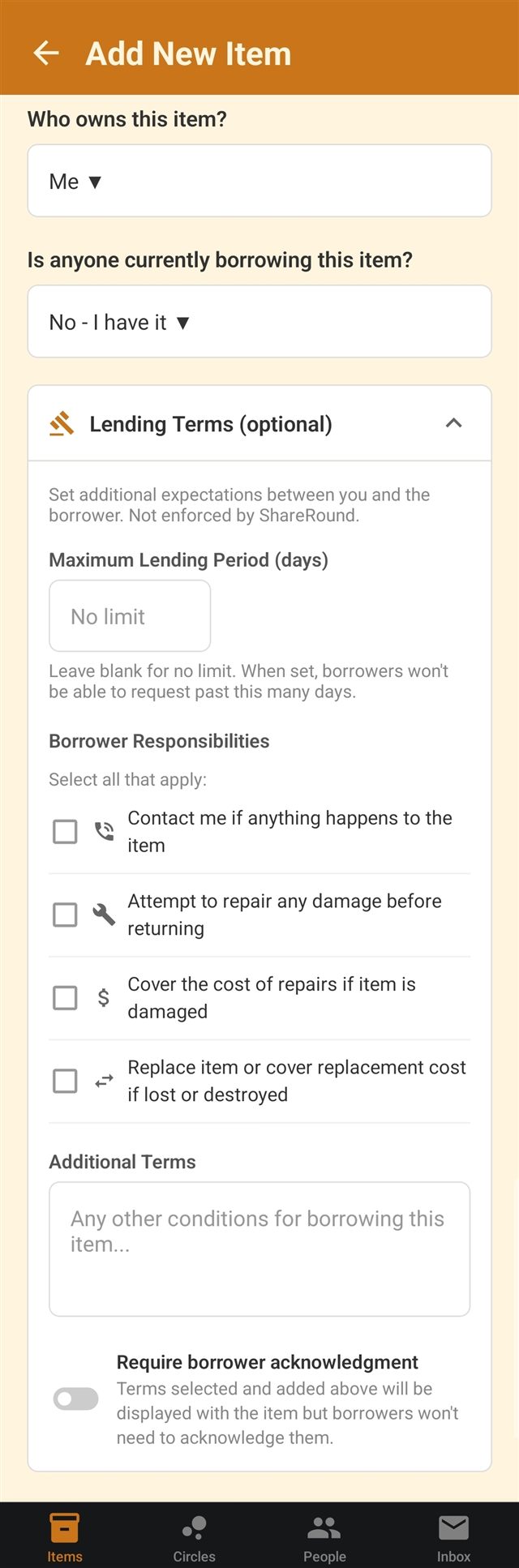
Spell out expectations up front, like a maximum number of days the item can be borrowed, and who's responsible for repairs, damage, or loss. Borrowing terms are just a reference between you and the borrower; ShareRound does not enforce them.
Groups of people you share items with, like neighbors, friends, family, coworkers, or anyone else you want.
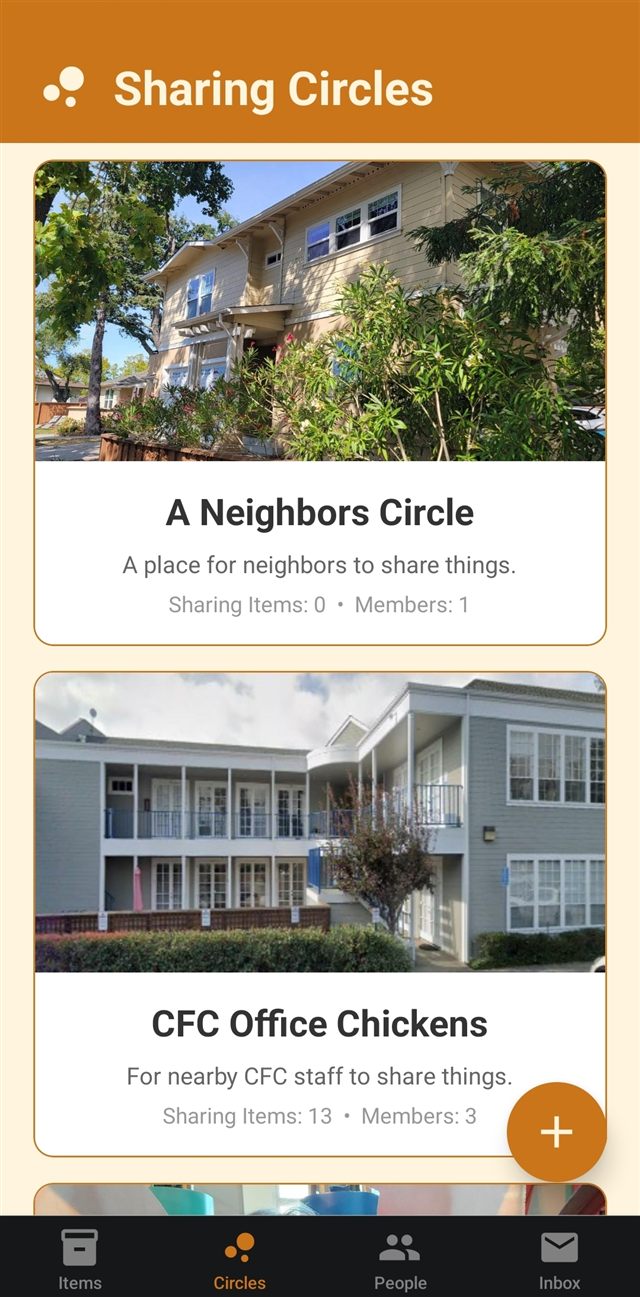
Tapping Circles in the bottom navigation brings you to the Sharing Circles list. Each sharing circle is a group of people sharing items with each other, and every circle you're in shows how many items and members it has right on the card. Tap any circle to open it and see what's being shared.
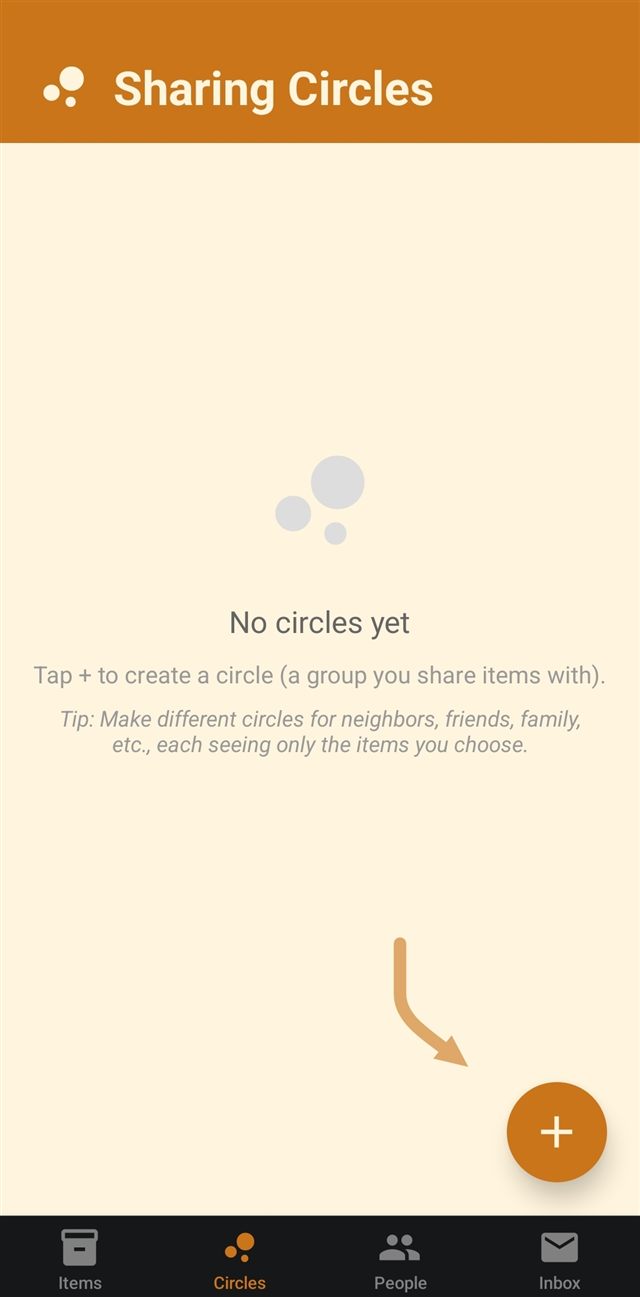
When you first sign up you may not be in any circles yet. Tap the orange + button to create one. Circles are not public or searchable, so you either have to be invited to join one or create one and invite others to join. Since an item is only visible to people in a circle it's been added to, each circle can see a different set of your things. A neighbors circle doesn't have to see the same items your family circle does.
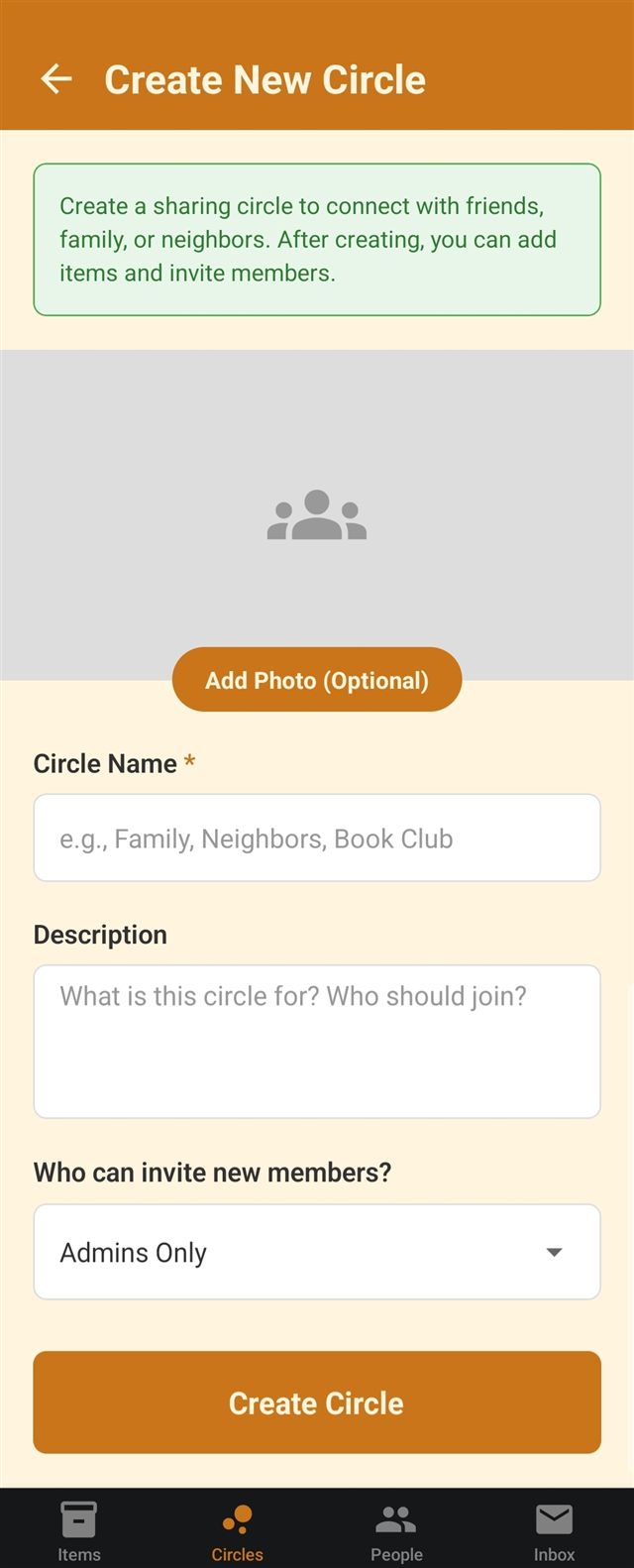
Give the circle a name and, if you'd like, a description and a photo. Only the name is required. Once it's created you can add items and invite people, and as its creator you automatically become the circle's first admin.
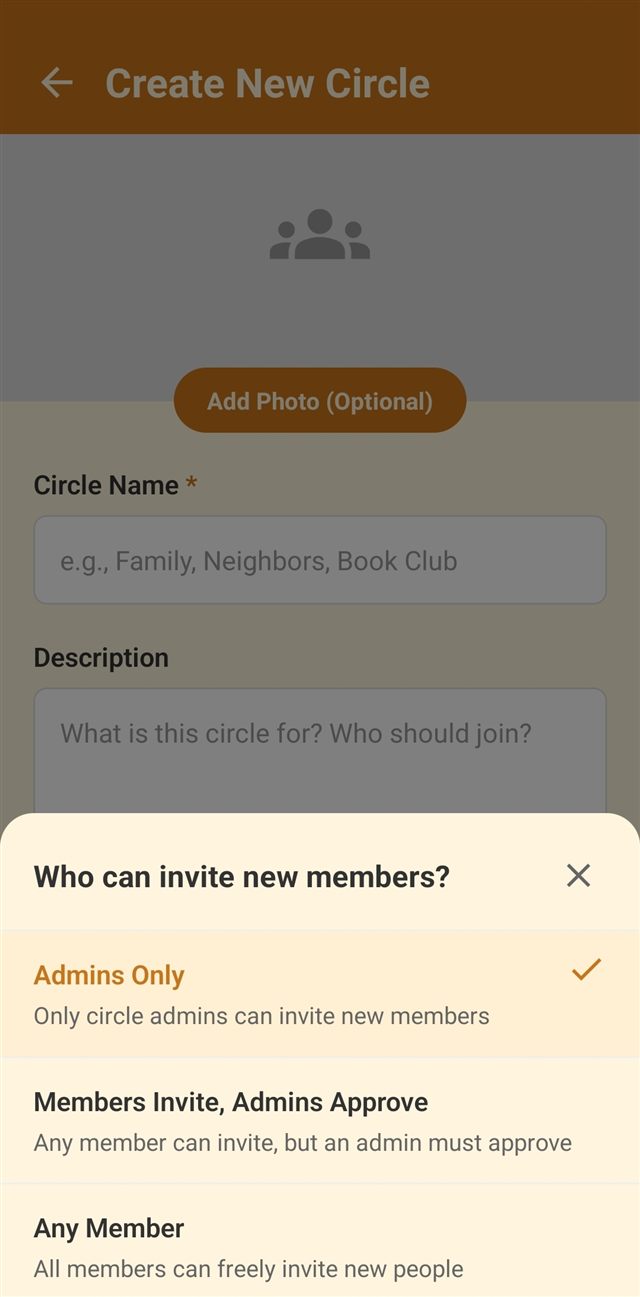
Decide how new people get into the circle. Admins Only keeps invites limited to circle admins. Members Invite, Admins Approve lets any member ask to invite someone, but an admin has to approve the request before the invitation is sent. With this option, non-admin members will only be able to invite users already on ShareRound (i.e., they won't be able to get a code to invite new users to the app and circle). Any Member lets everyone invite freely. You can change this setting later by editing the circle.
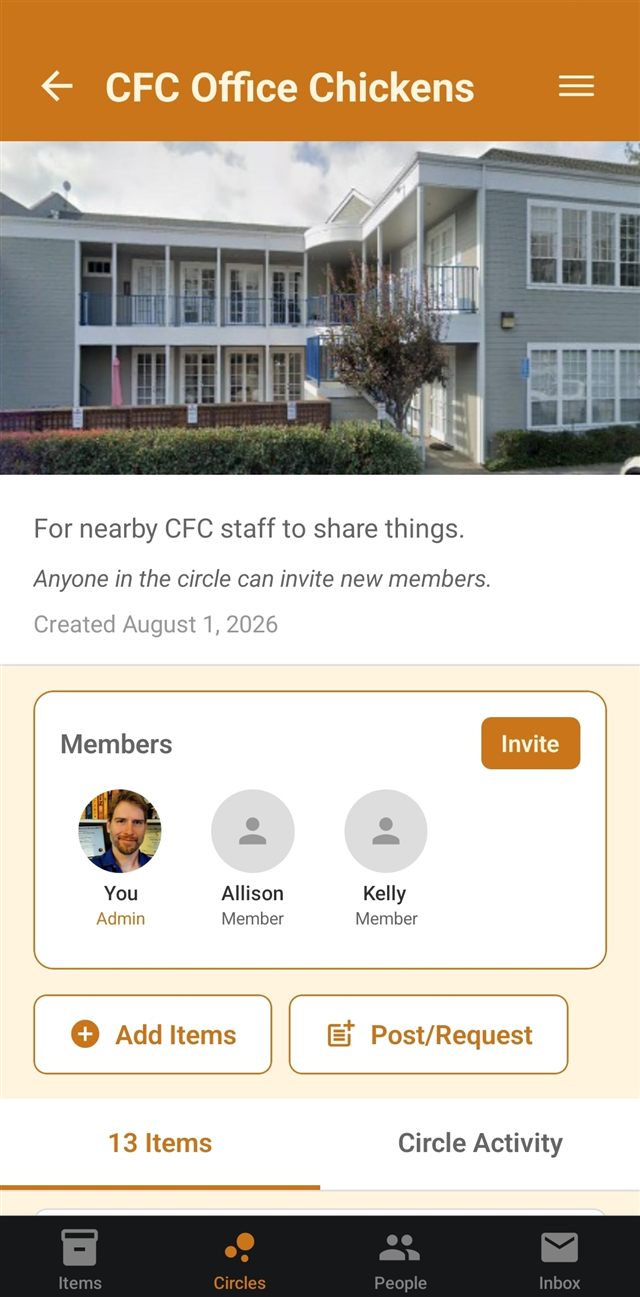
Opening a circle shows its description, who's in it, everything being shared, and the circle activity feed. The Items tab lists every item added to the circle, and the Circle Activity tab shows recent posts/requests as well as sharing and membership activity. Tap Add Items to put items in the circle, or Post/Request to ask the group for something that isn't listed yet, or to make an announcement.
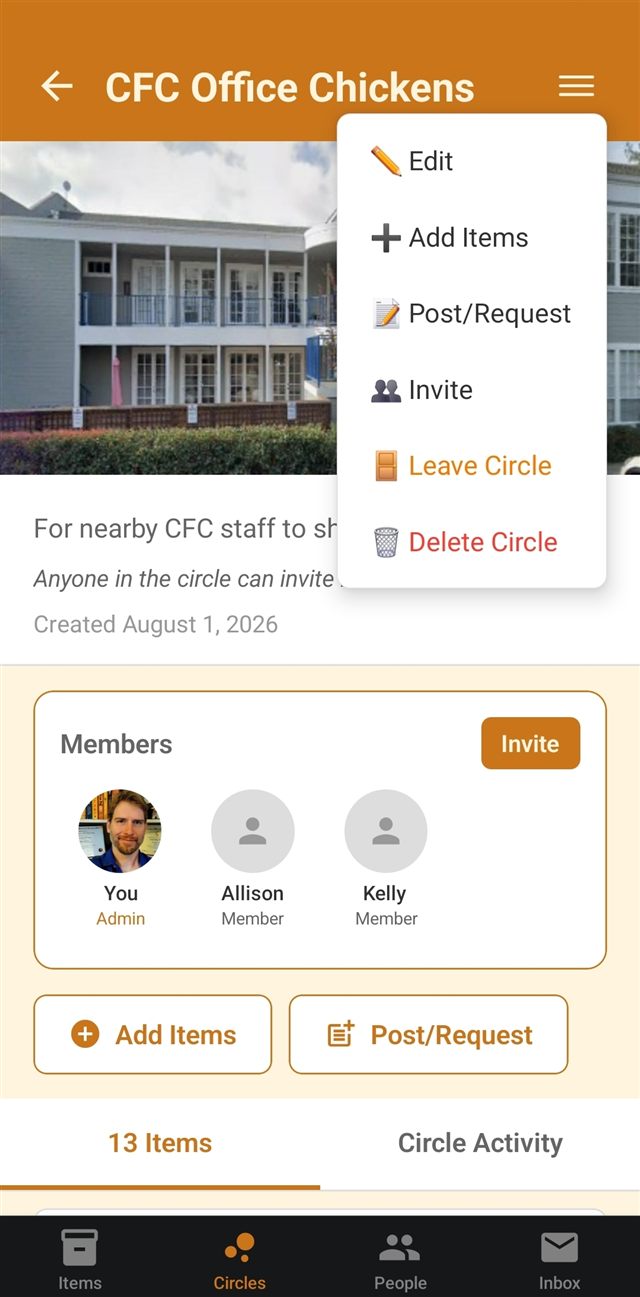
The ☰ menu in the top right holds everything you can do with a circle. Any member can add items, post or request, and leave the circle. Whether invite appears depends on the circle's invite setting, and edit and delete circle are limited to admins. Leaving a circle also removes your items from it.
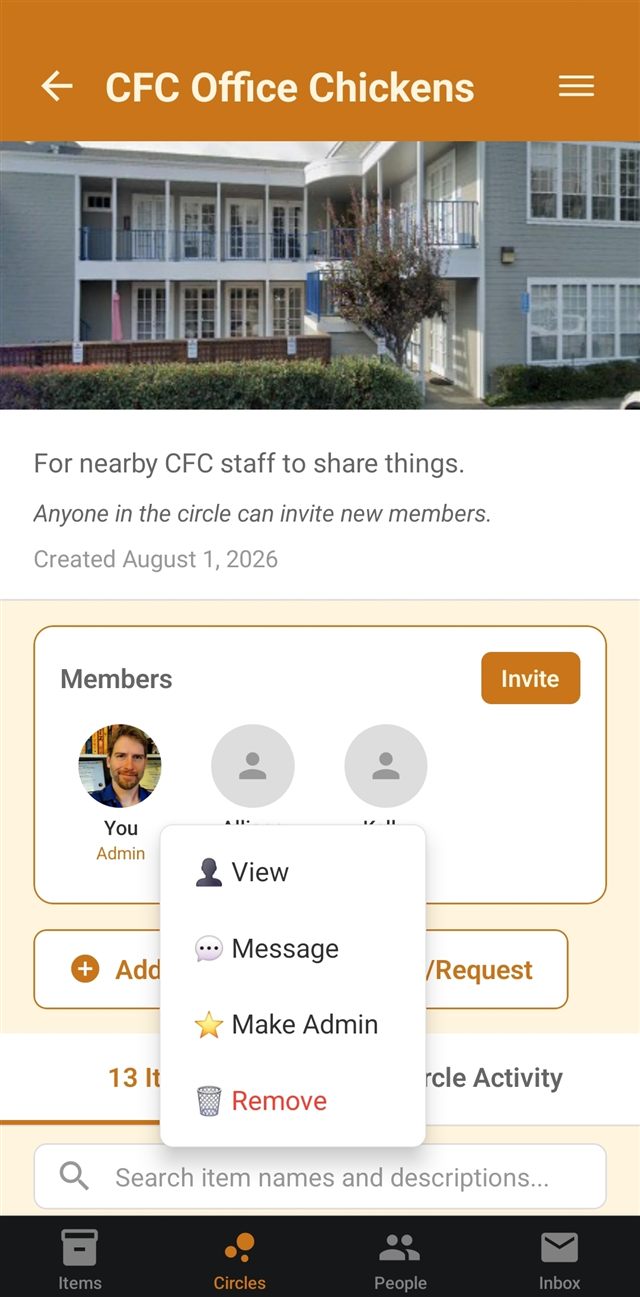
Tap a member's picture for quick actions. Anyone can view that person's profile or message them. Admins can also make a member an admin, which lets them edit the circle and manage members too, or remove them from the circle. Removing someone takes their items out of the circle along with them.
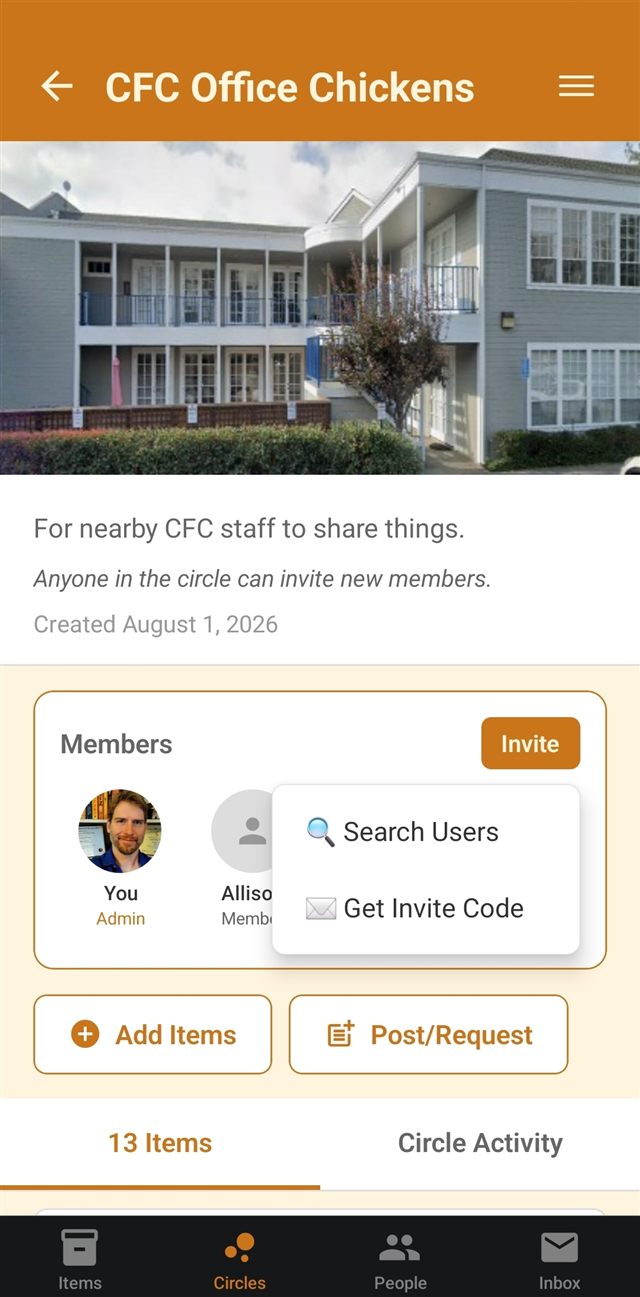
Tap Invite and pick how you'd like to do it. Search Users finds someone already on ShareRound and sends them an invitation to the circle in the app. Get Invite Code gives you a code you can text or email to anyone, even someone who hasn't joined ShareRound yet, which they enter in the app to join the circle. Whether this option appears depends on the circle's invite settings.
Your one-to-one connections, plus the placeholder profiles you manage for people not on ShareRound yet.
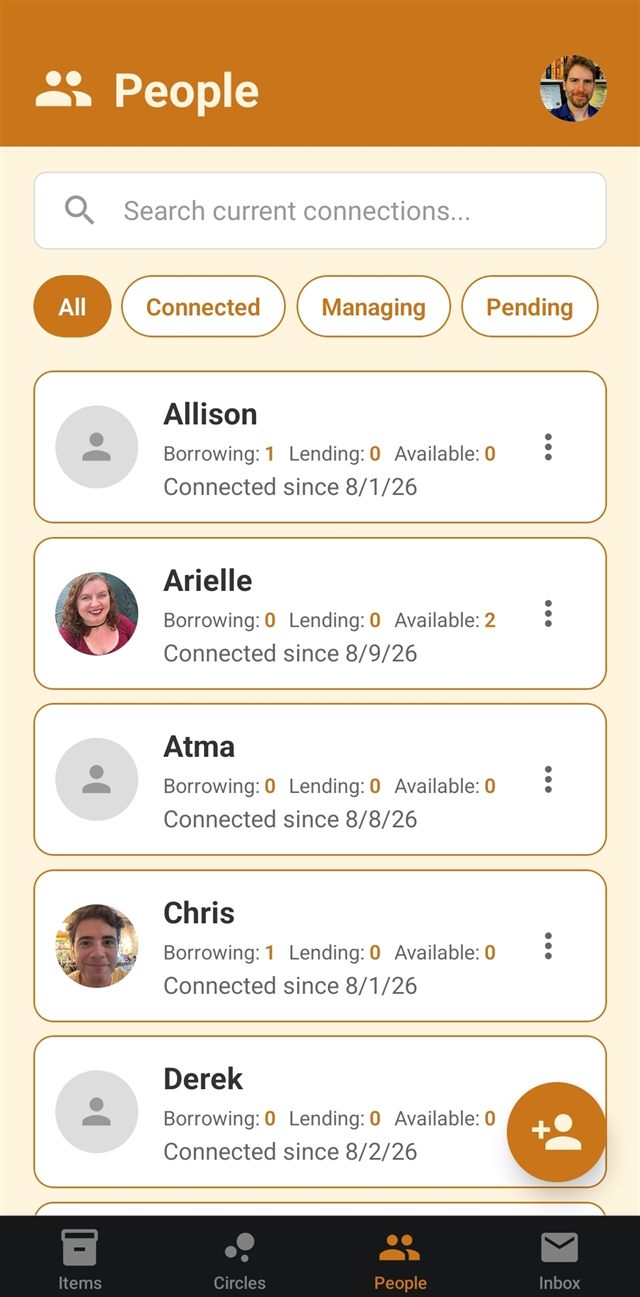
Tapping People in the bottom navigation brings you to your connections. Each card shows how many things you're currently borrowing from that person, lending to them, and how many of their items are available to you, along with the date you connected. Search by name, or use the filters to show only people you're connected with, profiles you're managing for someone not on ShareRound yet, or requests still pending a response.
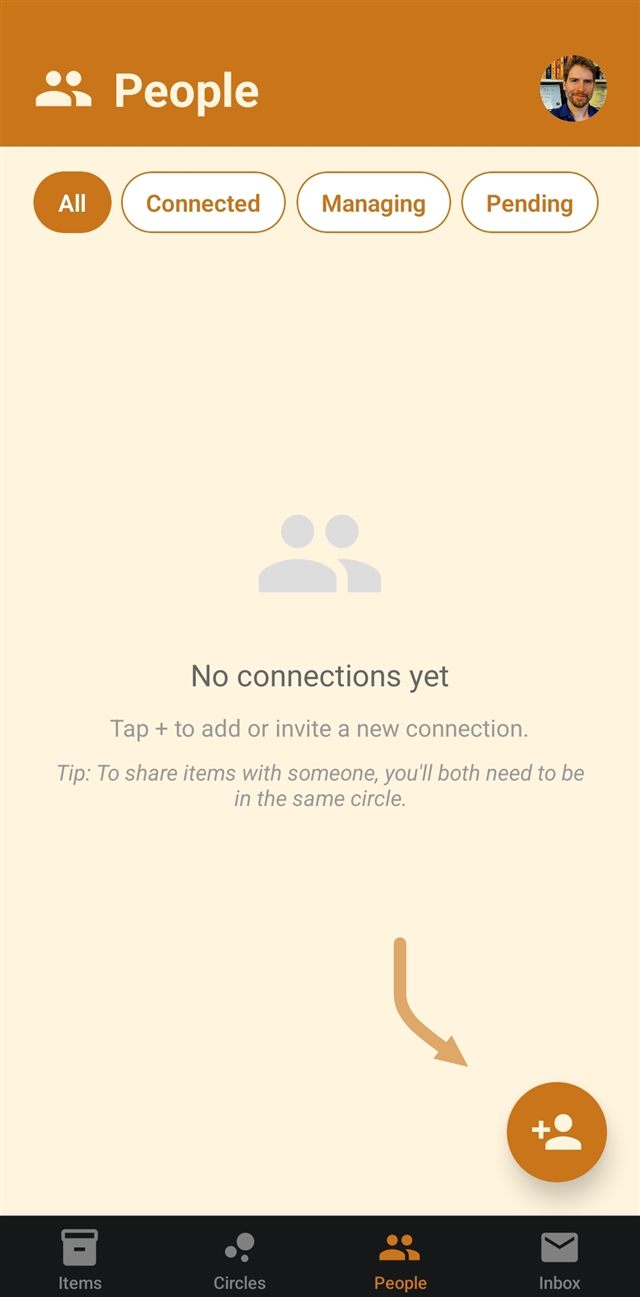
When you first sign up your People list may be empty. Tap the orange + button to add or invite someone. Connecting lets you message that person and invite them to your circles, but remember that to actually see and borrow each other's items, you'll both need to be in the same sharing circle.
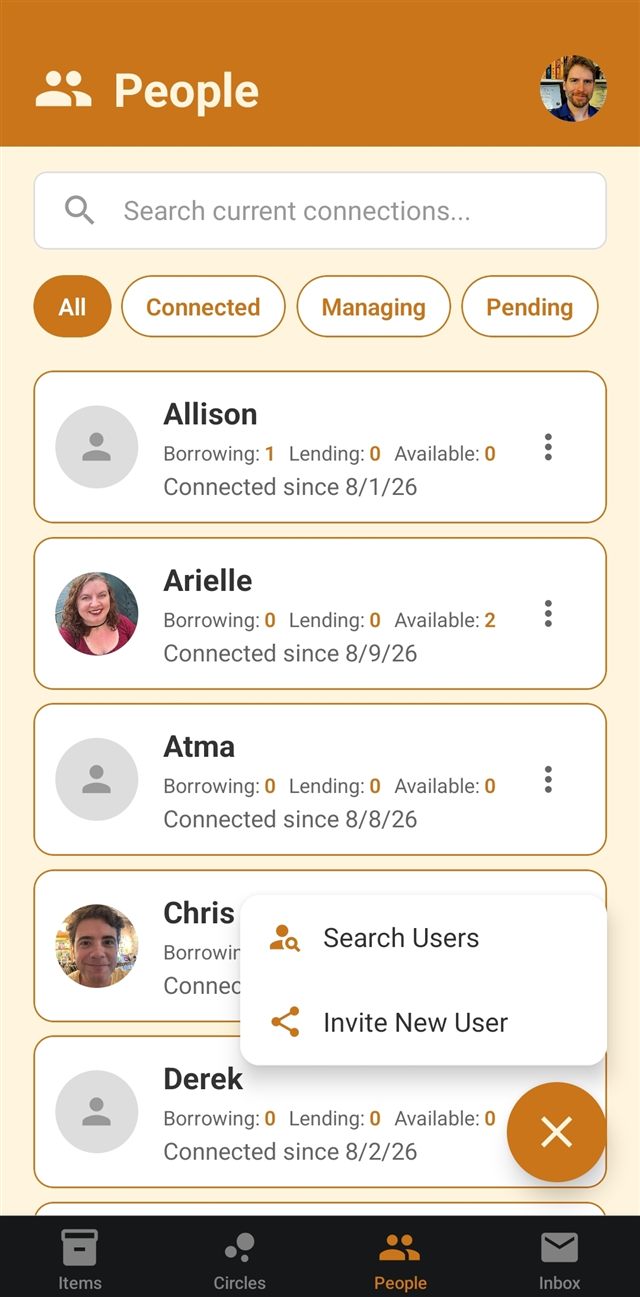
Tap the orange + button and choose how you'd like to connect. Search Users looks for someone already on ShareRound. Invite New User creates a personal invite link and code you can text or email to someone who hasn't joined yet, and the two of you will automatically be connected once they sign up through it.
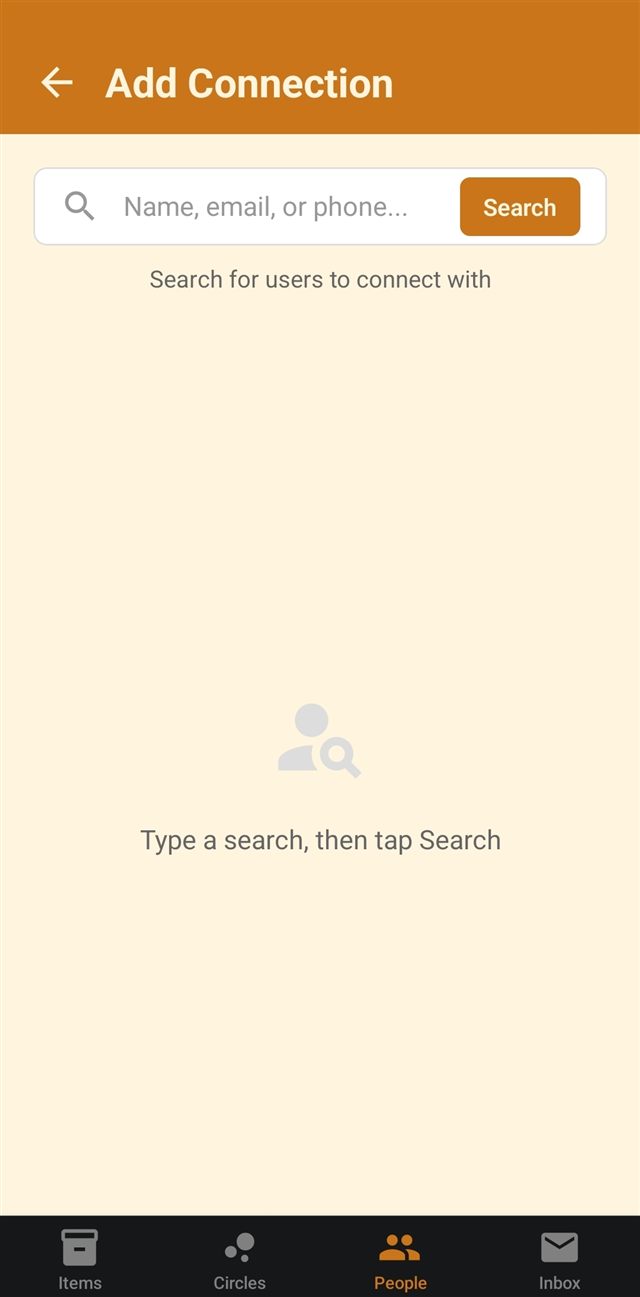
Type a name, email address, or phone number and tap Search to find other ShareRound users. You can include a message when you ask to connect. They'll get a notification, and your connection becomes active once they accept it. Anyone who has turned on Hide me from search in their privacy settings won't show up in these results, even if you search using their correct info.
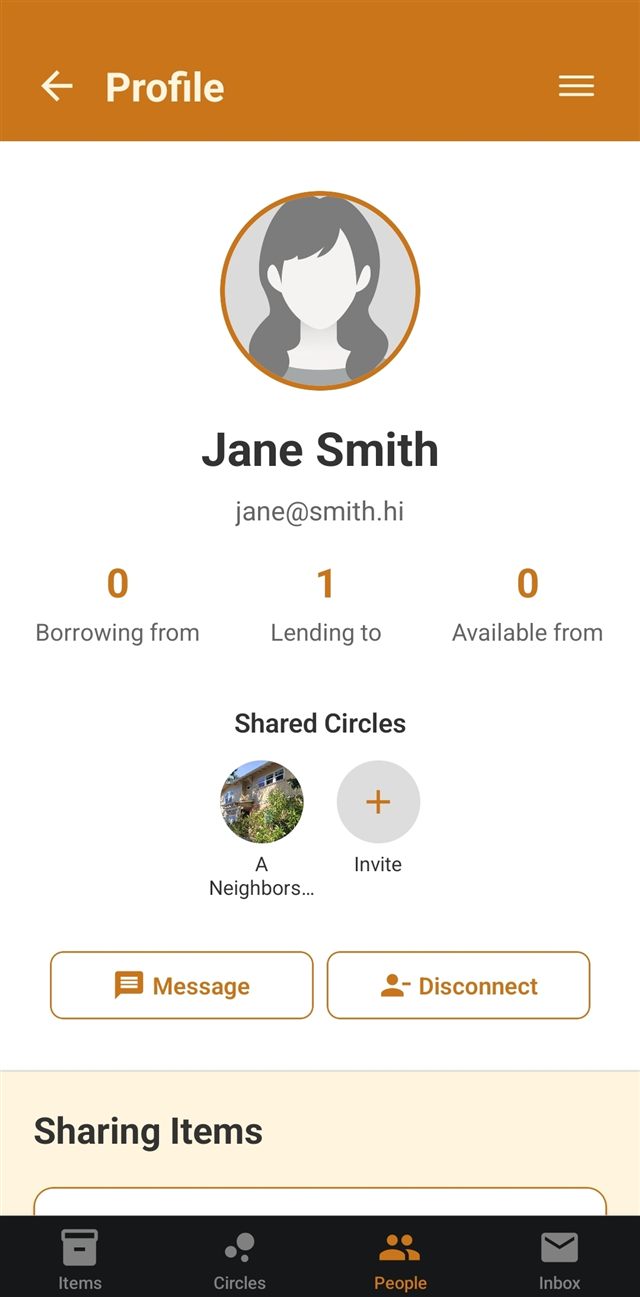
A connection's profile shows how many things you're currently borrowing from them, how many you're lending to them, and how many they have available to you, along with the circles you're both in. Below that is every item of theirs you can see through those shared circles. Tap any item to open it and request to borrow or return it.
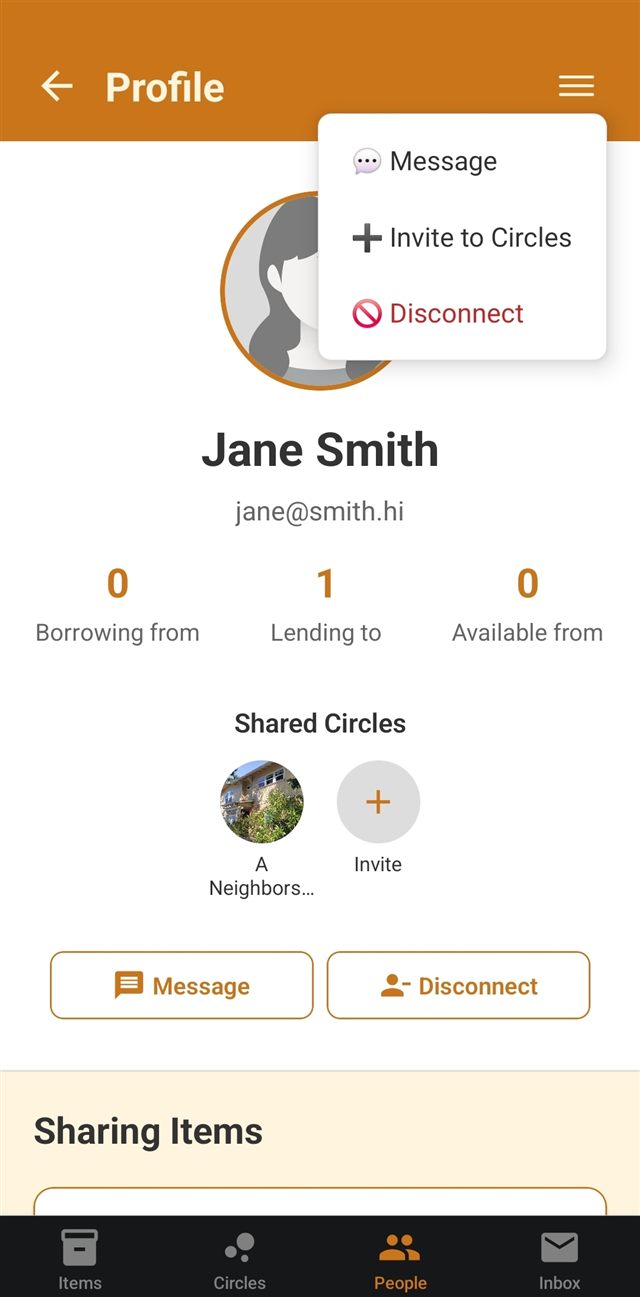
Use the ☰ menu in the top right, or the buttons on the profile itself, to message that person about an item or arrange a handoff, or invite them to circles you're in. Disconnect ends the connection so neither of you sees the other or your shared items. You can also block, which disconnects and additionally stops them from finding you in search or asking to reconnect. Either way, you can search for them and reconnect later if you change your mind.
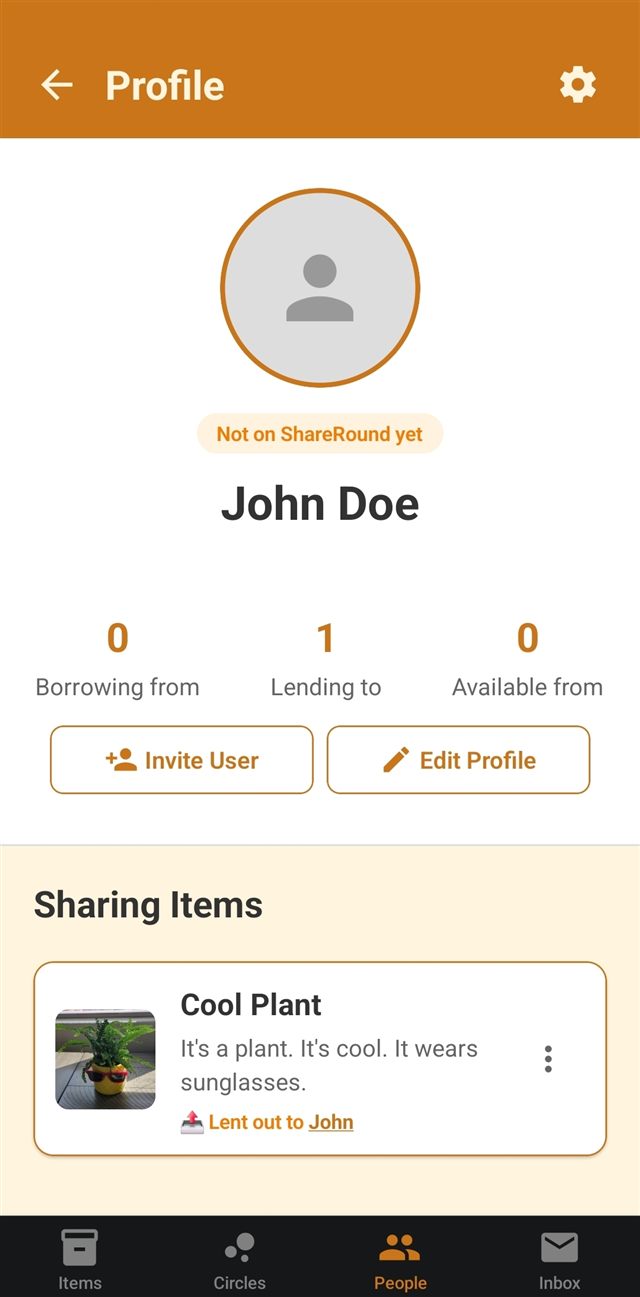
When you record an item as lent to or borrowed from someone who isn't on ShareRound yet, the app creates a managed profile for them, marked with a Not on ShareRound yet badge. It works like a regular profile for keeping track of what's lent between you, except that person can't log in or act on it. You'll find these under the Managing filter on your People list.
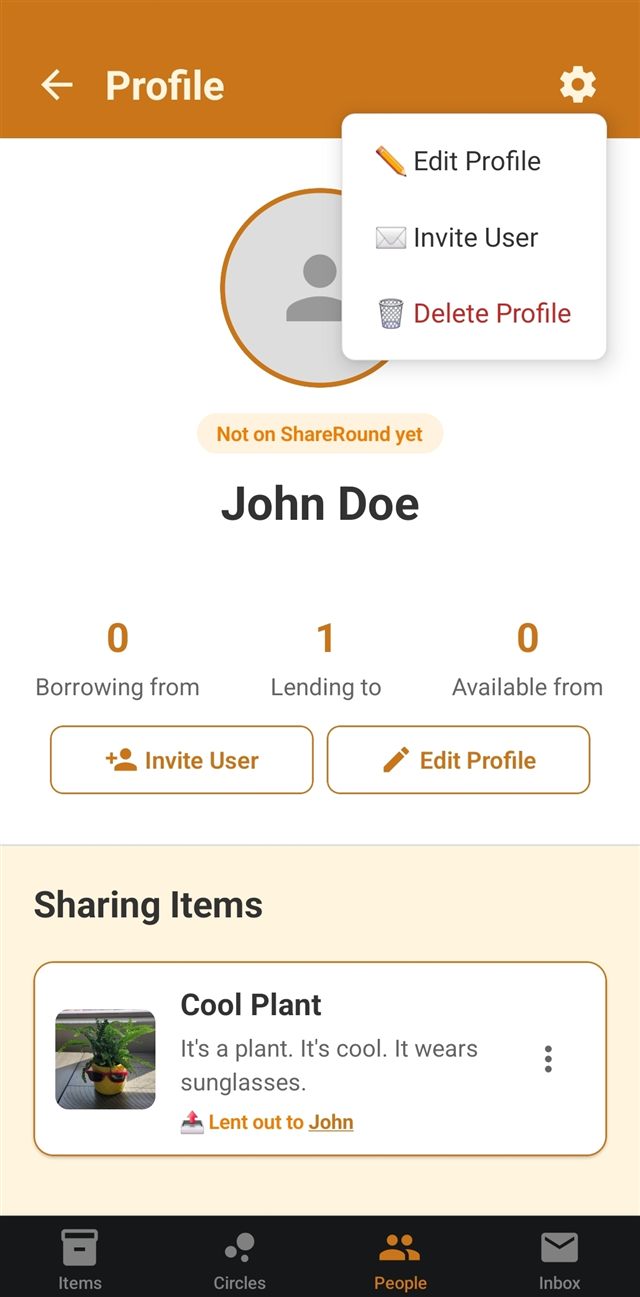
Tap the ⚙️ gear icon in the top right or the buttons under the sharing stats to manage the profile. Edit Profile allows you to update their image, name, and contact details. Invite User gives you a code you can text or email them to claim the profile, which turns it into their real account with all the sharing history you've already recorded intact. Delete Profile removes it if you no longer need it.
Every request, approval, reminder, and message ShareRound sends you, all in one place.
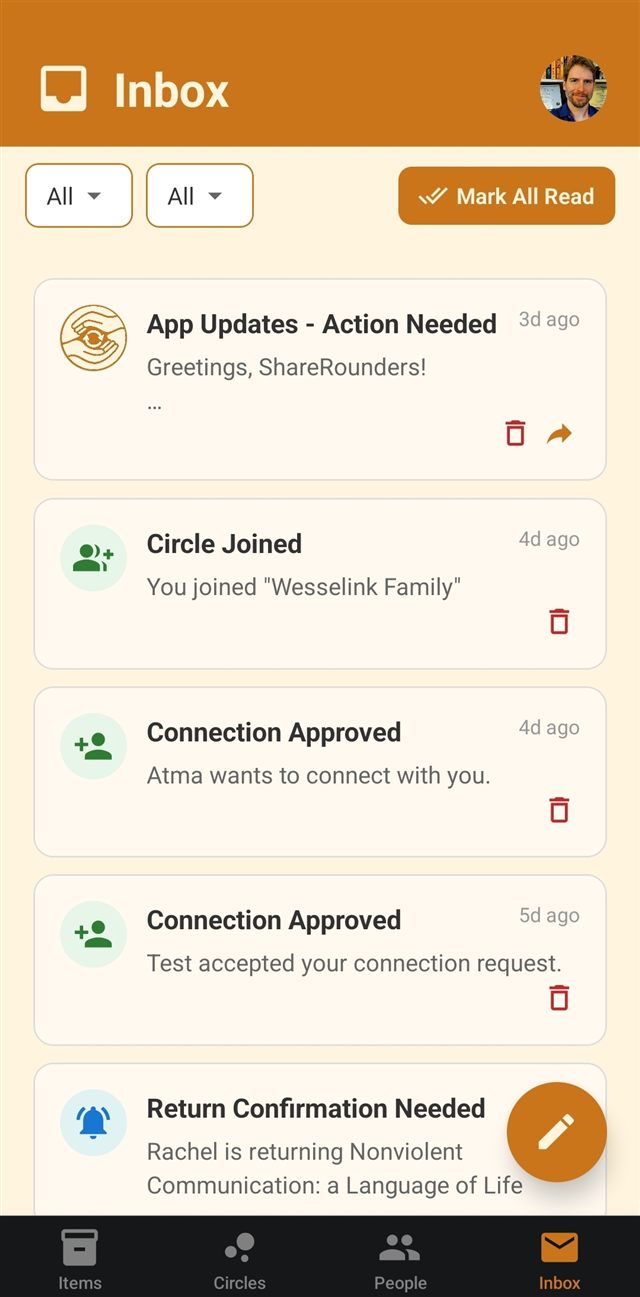
Tapping Inbox in the bottom right brings you to your notifications, newest first. Borrow requests, approvals and declines, return reminders, circle invites, new connections, and direct messages all land here, with unread ones highlighted. Tap any notification to open it and act on it, use the 🗑️ trash icon to delete one you're done with, or tap Mark All Read to clear every highlight at once.
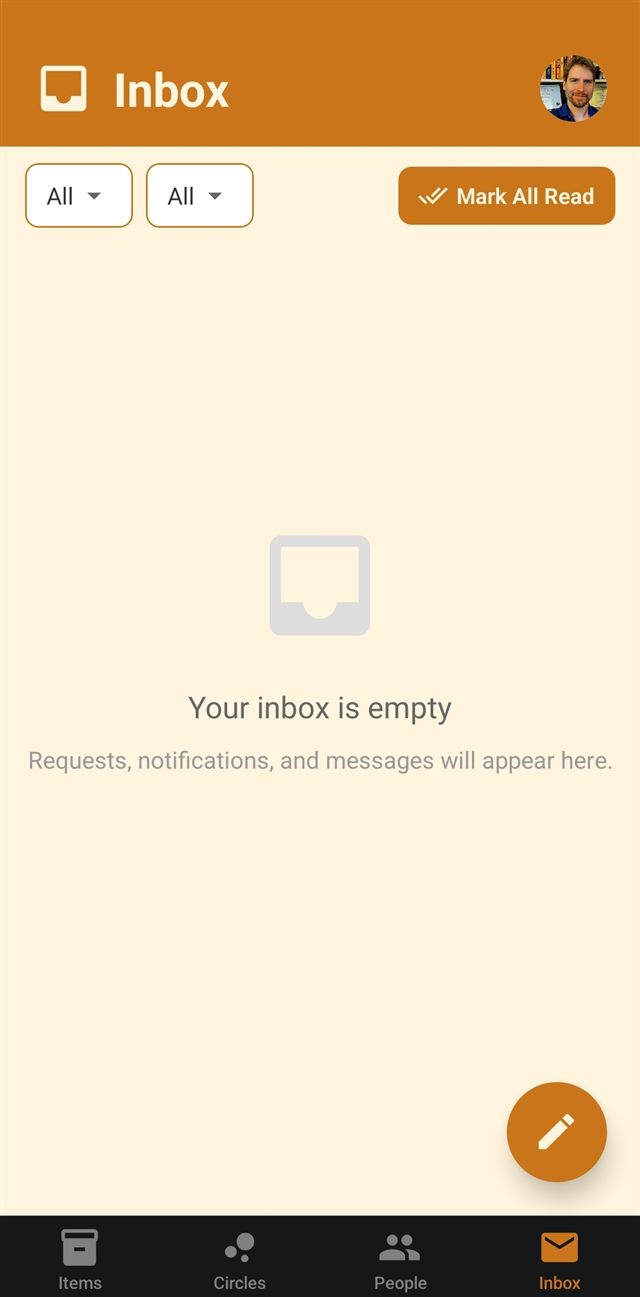
An empty inbox means nothing is waiting on you. New requests, notifications, and messages appear here automatically as they happen, and if you have push notifications turned on, you'll also get an alert on your device.
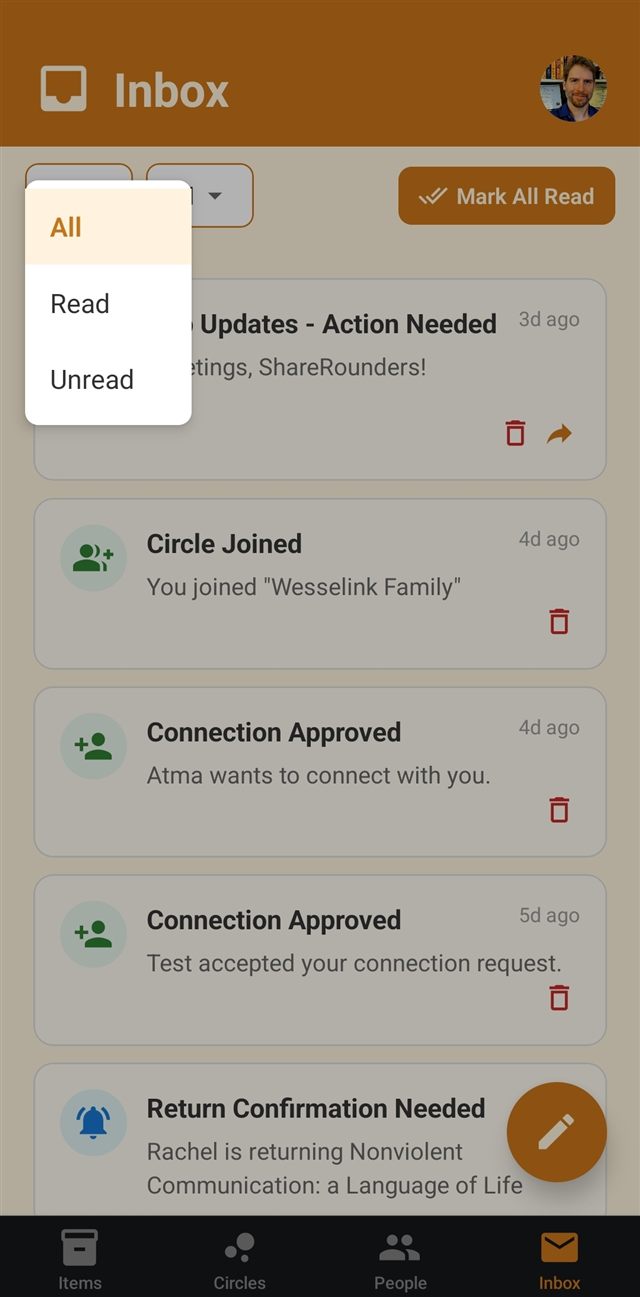
The dropdown on the left filters by whether you've read something yet. Switch to Unread to see only what's new that you haven't opened, or Read to find something you've already looked at. The two dropdowns work together, so you can combine them to see, for example, only unread messages.
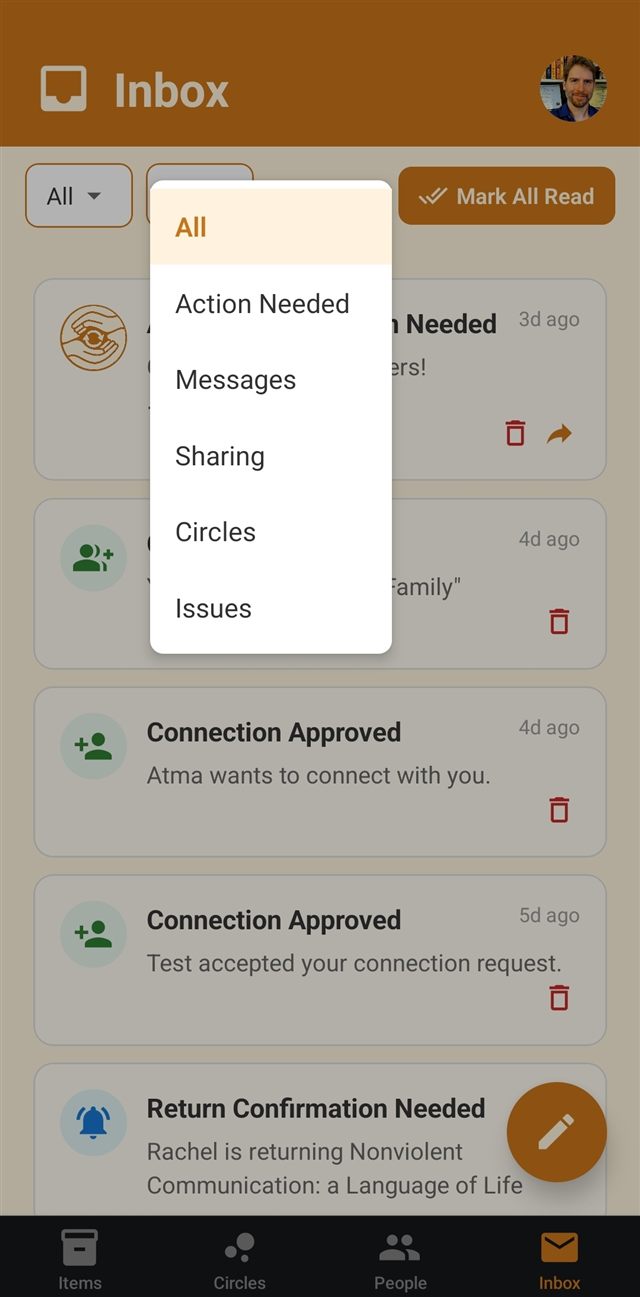
The dropdown on the right narrows the list by what a notification is about. Action Needed is the most useful when your inbox is busy, showing only things waiting on a response from you, like a borrow request to approve or a return to confirm. The rest filter the list to only show messages, sharing activity, circles, and reported issues.
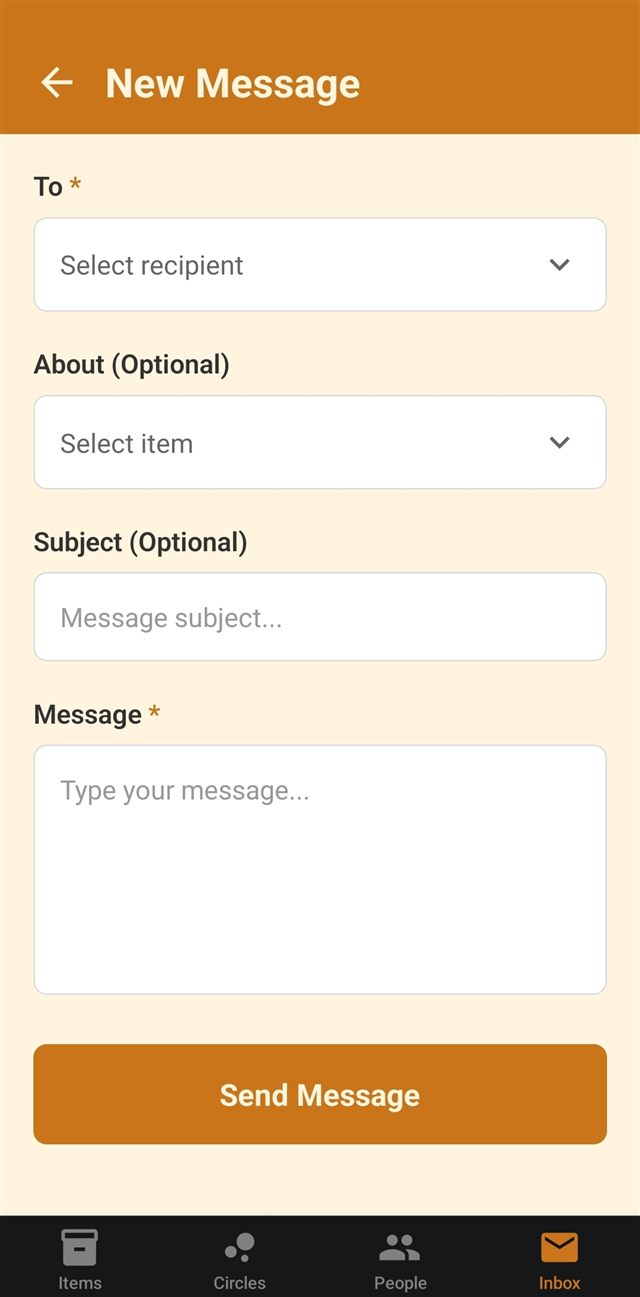
Tap the orange ✏️ pencil button in the bottom right to write a message. Pick a recipient from your connections and type your message. You can optionally attach it to a specific item and add a subject, which helps when you're arranging a pickup or a return. Messages you receive show up in your inbox with a reply arrow for answering right from the list. Note that messages are not end-to-end encrypted.
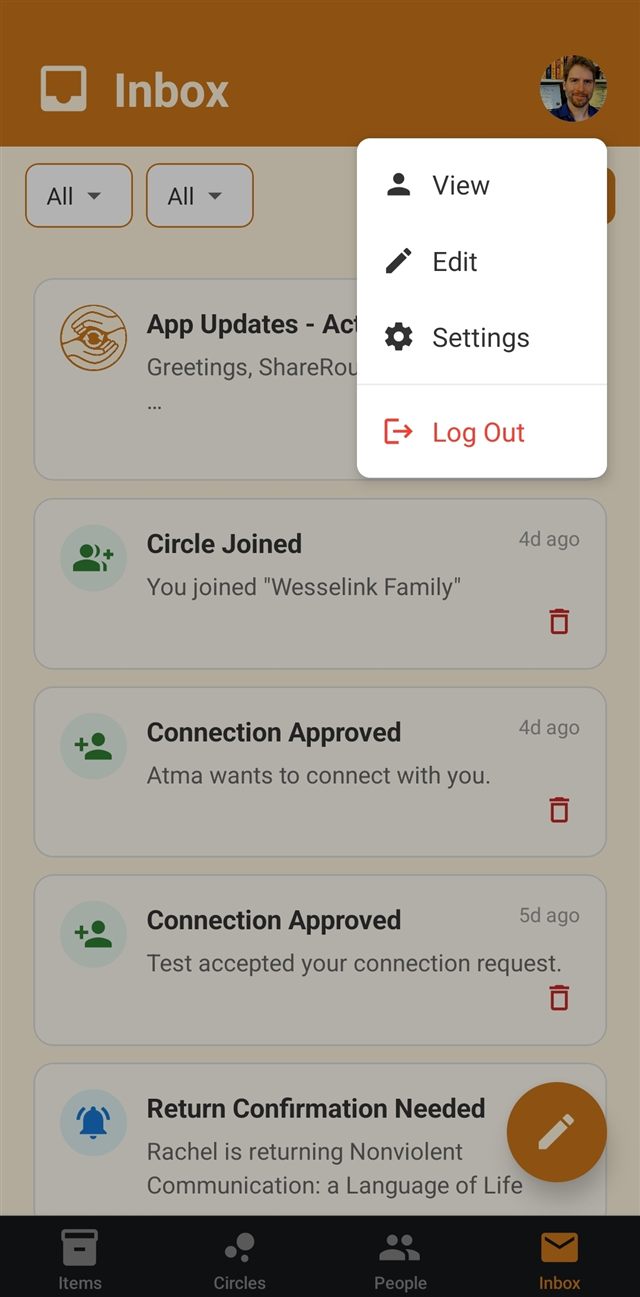
Your profile picture sits in the top right of the Inbox and People screens. Tap it any time to view your profile and sharing stats, edit your photo, name, email, phone, or password, jump to settings for privacy and notifications, or log out of the app.
Your profile, your privacy, and how ShareRound gets in touch with you.
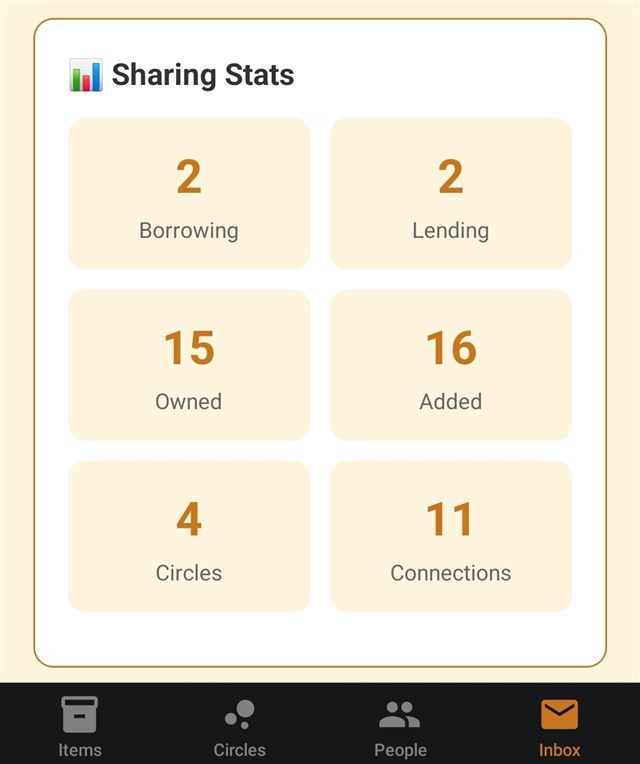
Tap your profile picture and choose View to see a snapshot of your ShareRound activity: how many items you're borrowing and lending right now, how many you own versus how many you've added to the app, and how many circles and connections you have.
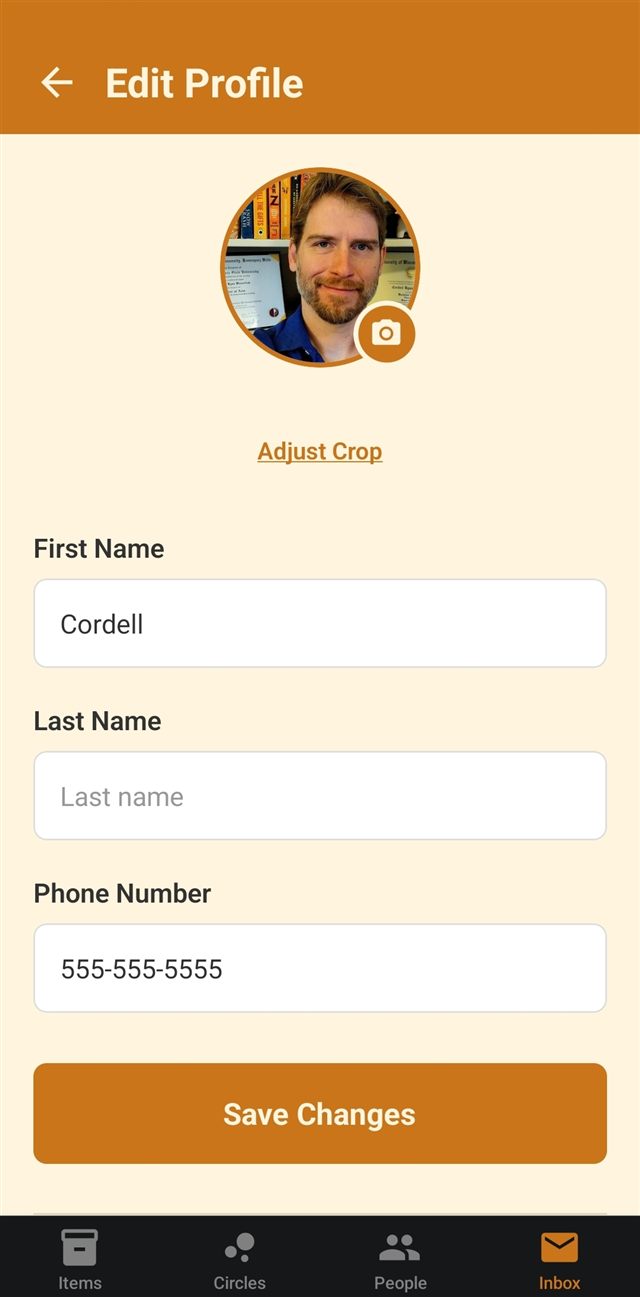
Choose Edit from the profile menu to change your photo, first and last name, and phone number. Tap the 📷 camera badge on your photo to pick a new one, or Adjust Crop to reframe the one you already have. Tap Save Changes when you're done.
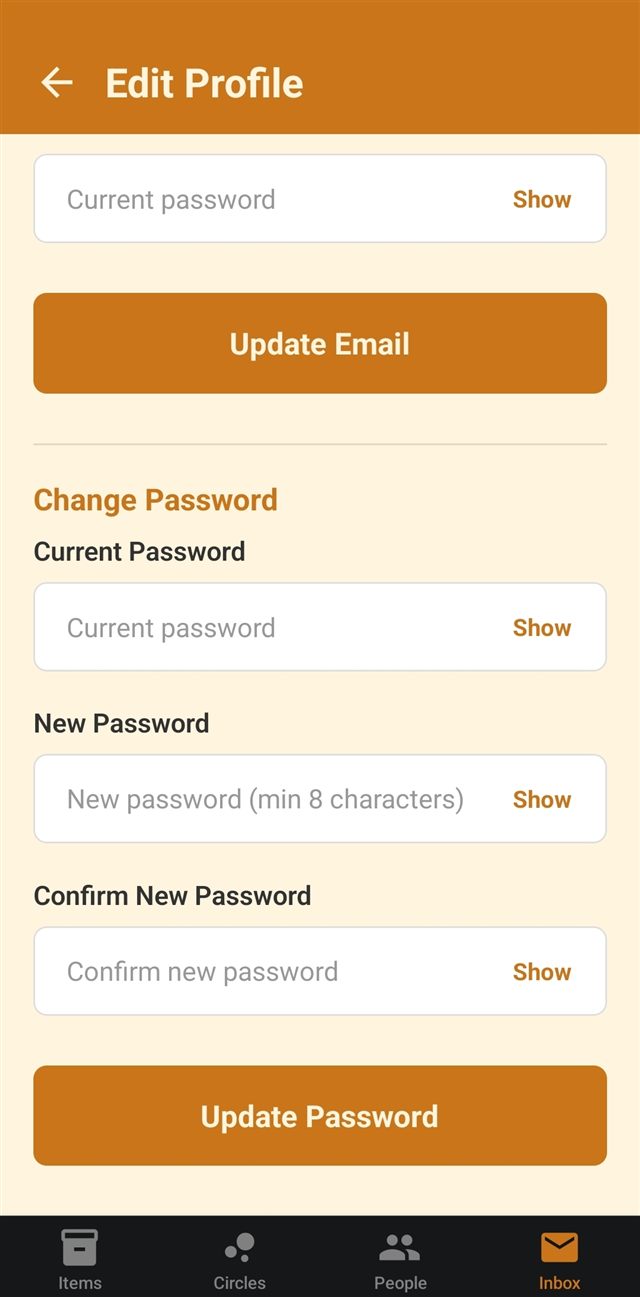
Scroll further down the Edit Profile screen for Change Email and Change Password. As a security check, both ask for your current password first. Changing your email sends a verification link to the new address, so you'll need to open that link to verify your email, even if you did so with your previous email. New passwords must be at least 8 characters.
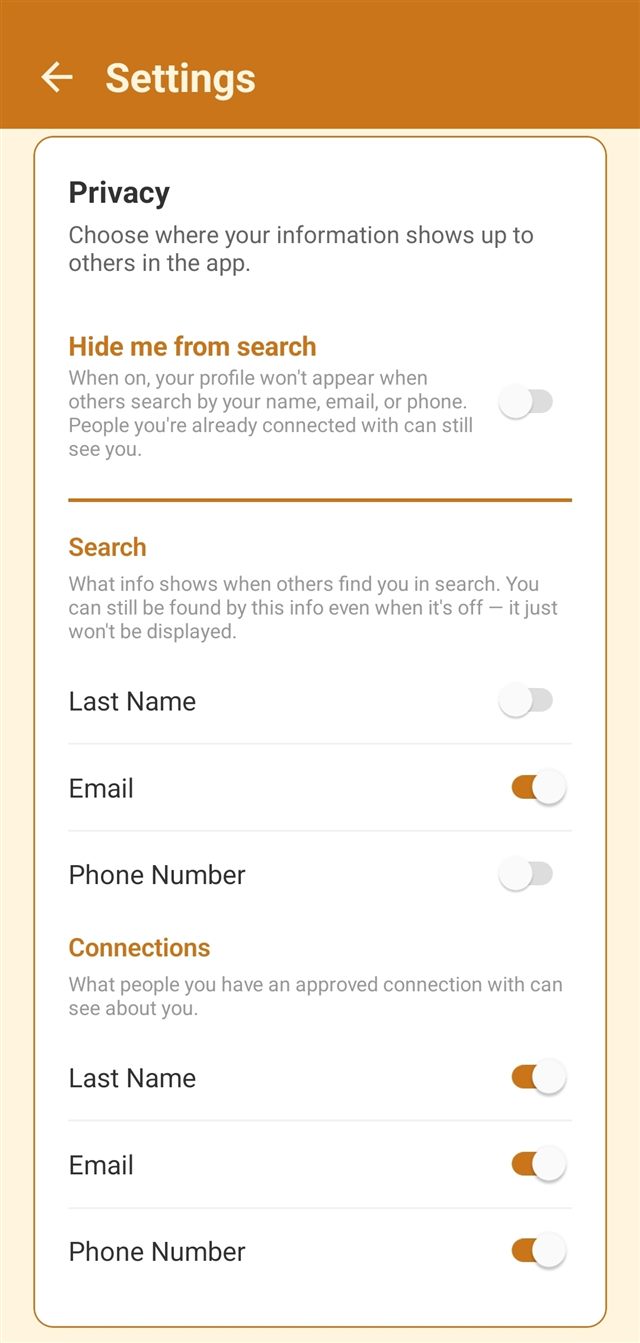
Hide me from search keeps your profile from appearing when other people search by your name, email, or phone, though people you're already connected with can still see you. Below that you control your details separately for two audiences: what's shown in search results, and what your approved connections can see. Your last name, email, and phone number are each yours to show or hide. Turning one off in search only hides it from being displayed; someone who already knows your email can still find you with it.
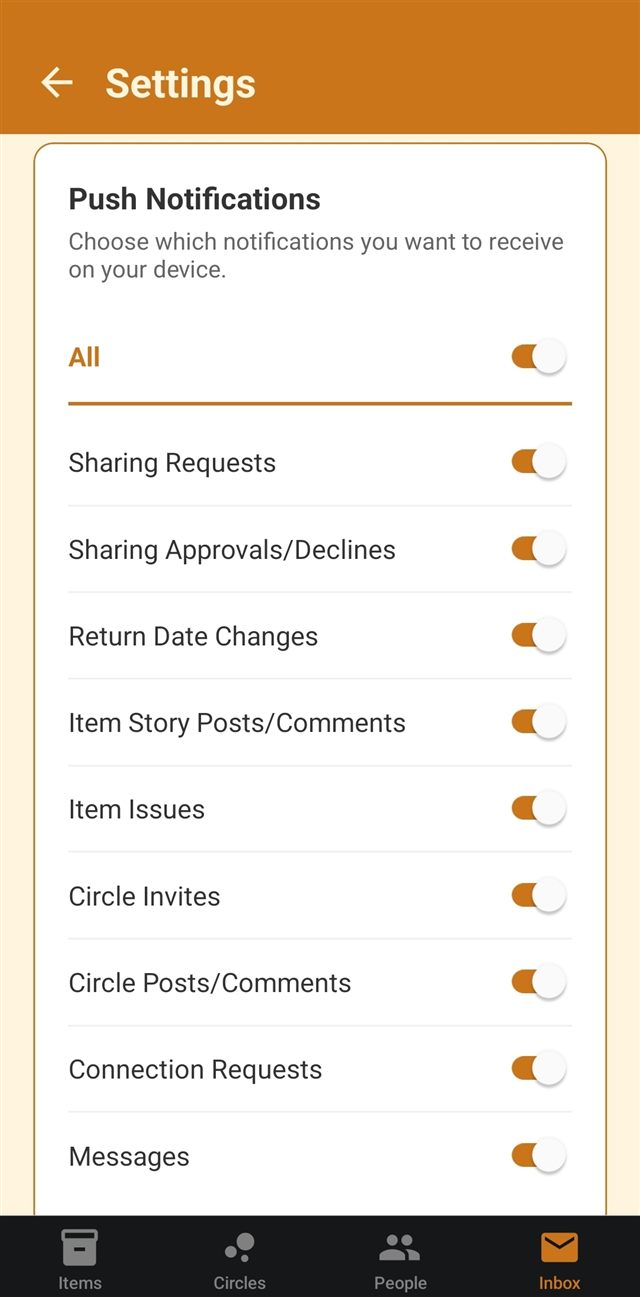
Choose which alerts reach your device. The All toggle at the top turns everything on or off at once, or you can fine-tune each kind on its own: sharing requests, approvals and declines, return date changes, item stories and comments, item issues, circle invites, circle posts, connection requests, and messages. Turning one off only stops the alert on your phone; the notification still arrives in your inbox.
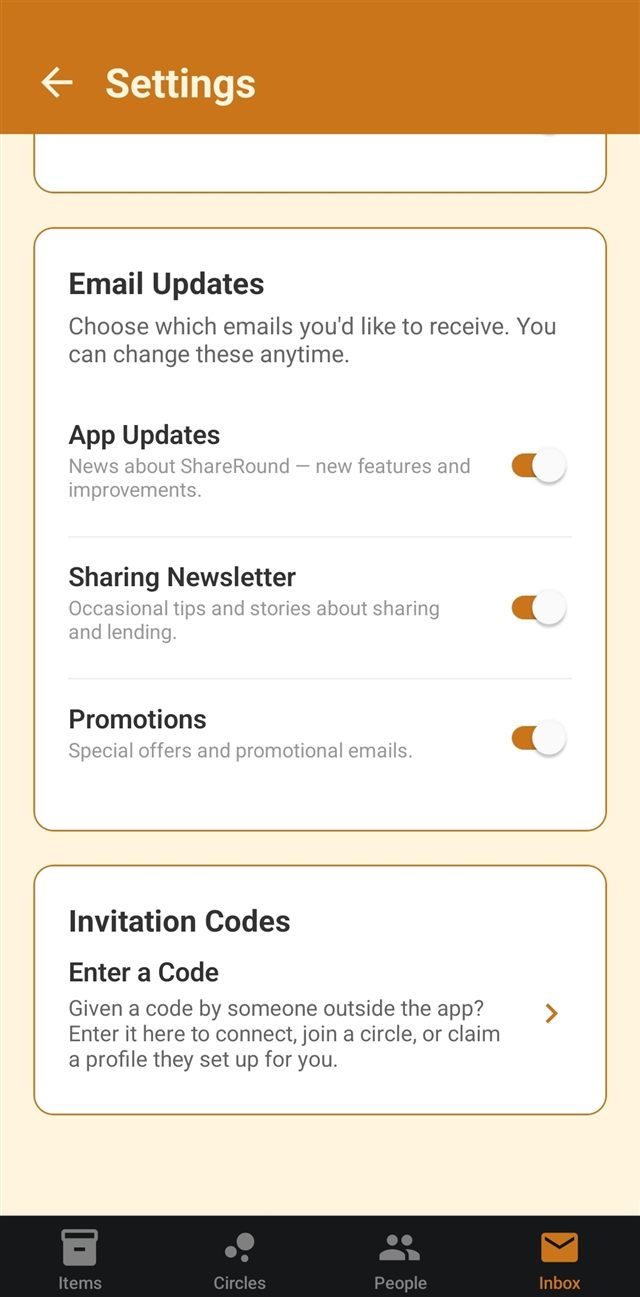
Further down the Settings screen, Email Updates controls which emails ShareRound sends you: app updates, the occasional sharing newsletter, and promotions. You can change these any time. At the bottom, Enter a Code is where you put in a code someone gave you outside the app, whether it's to connect with them, join one of their sharing circles, or claim a placeholder profile they set up on your behalf.